Initial Step Up
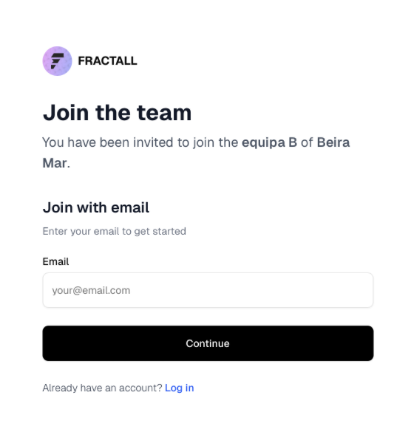
- Click on the invite link that the admin sent to you
a) Insert you email
Verify your email
a. Go to your email inbox
b. Find the fractall.fit email (check your spam folder if you cannot find the email in your inbox)
c. Click the “Confirm your mail” link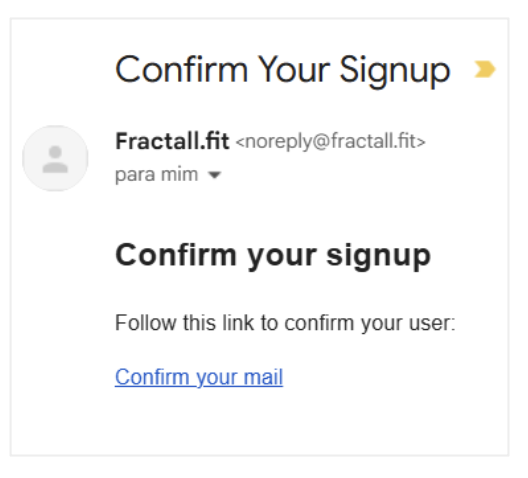
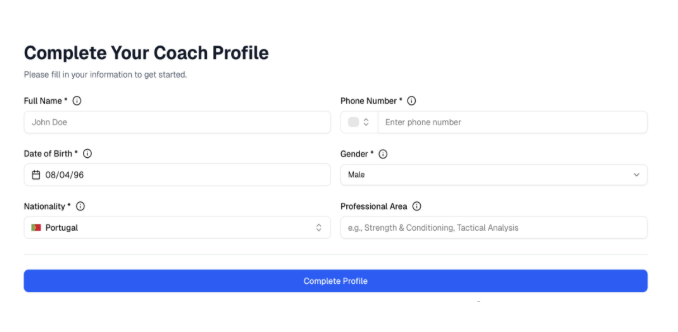
Complete Your Coach Profile by filling the required filters
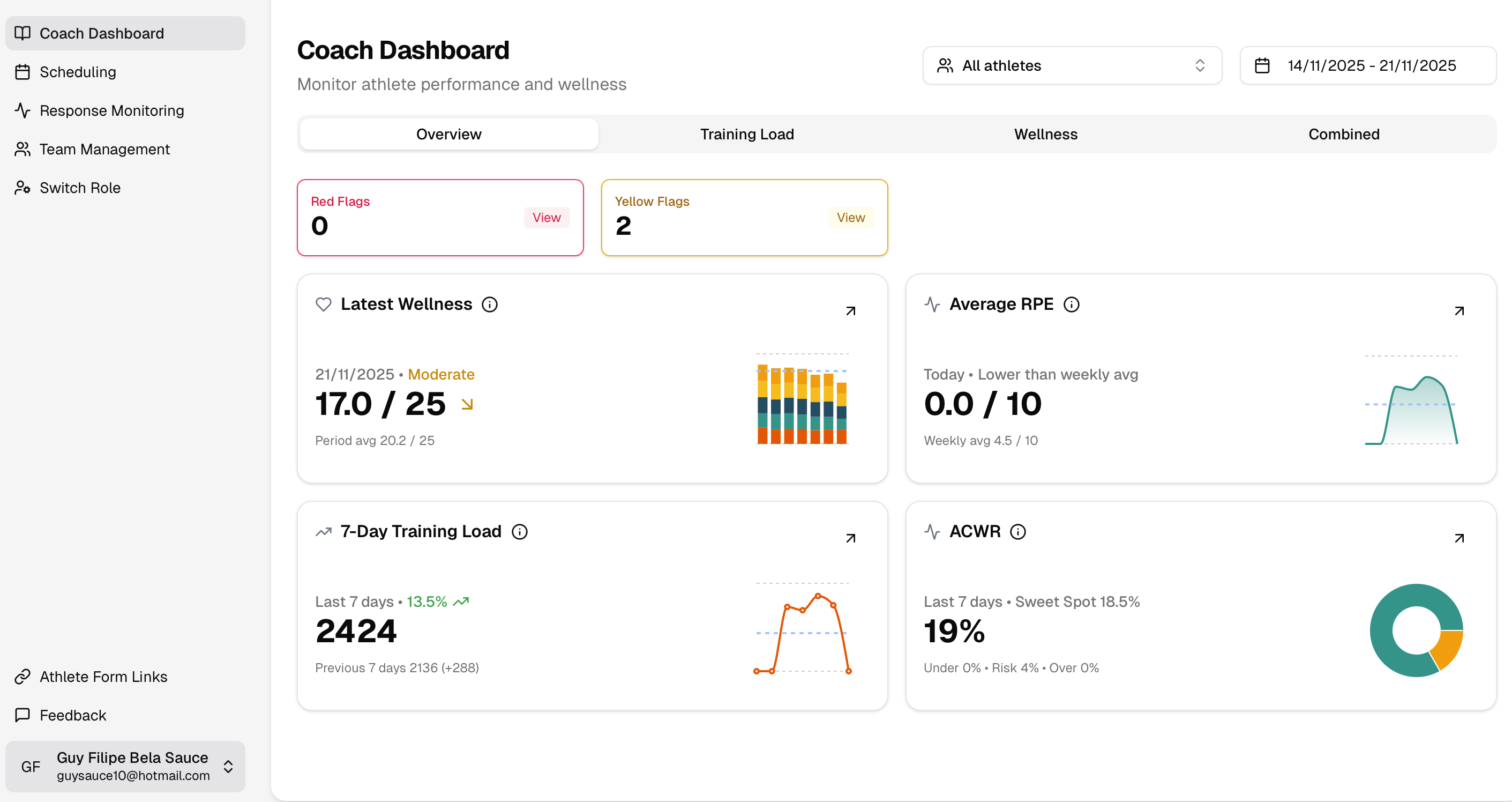
Coach Dashboard
Overview
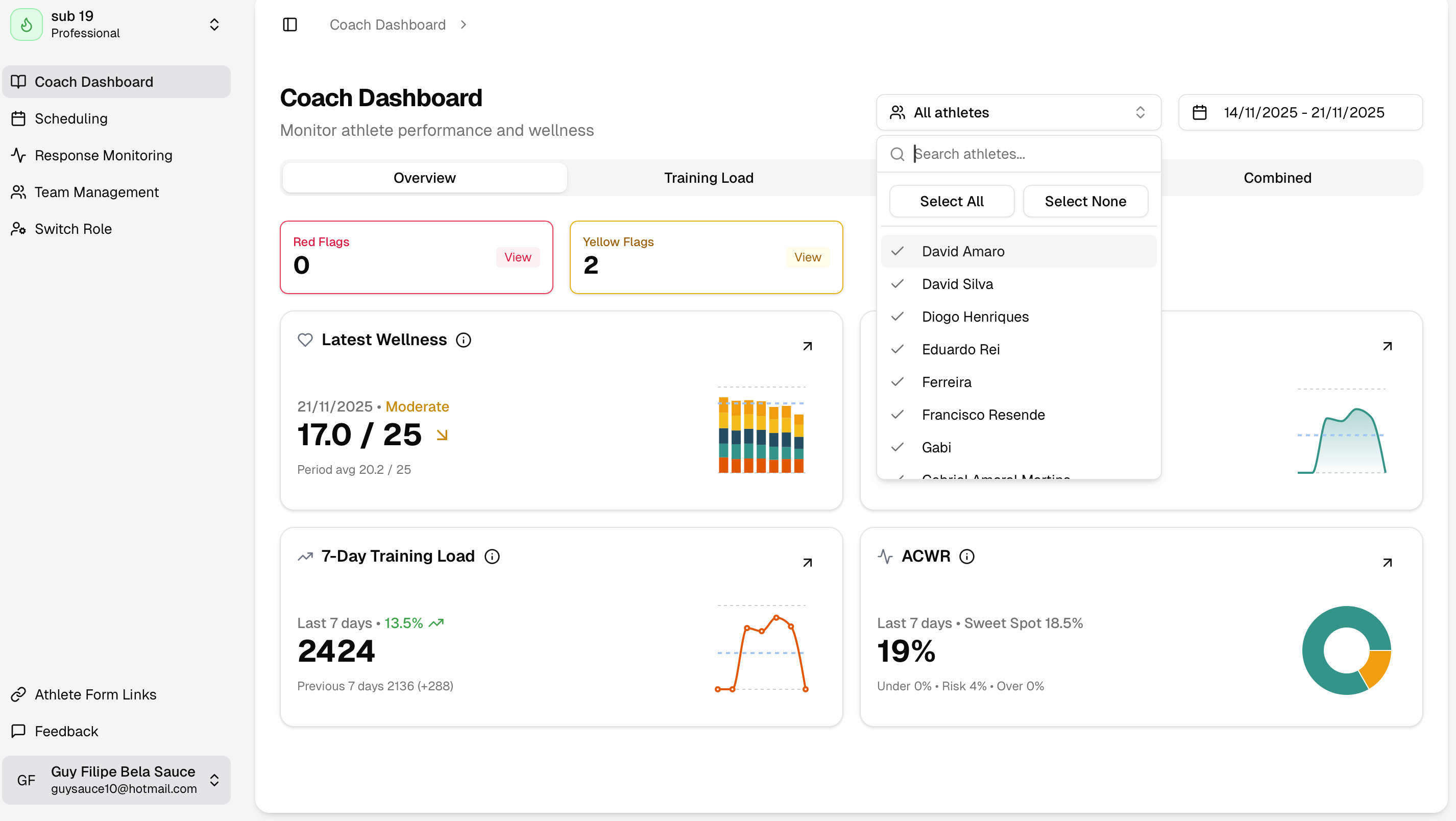
- You can click on every chart
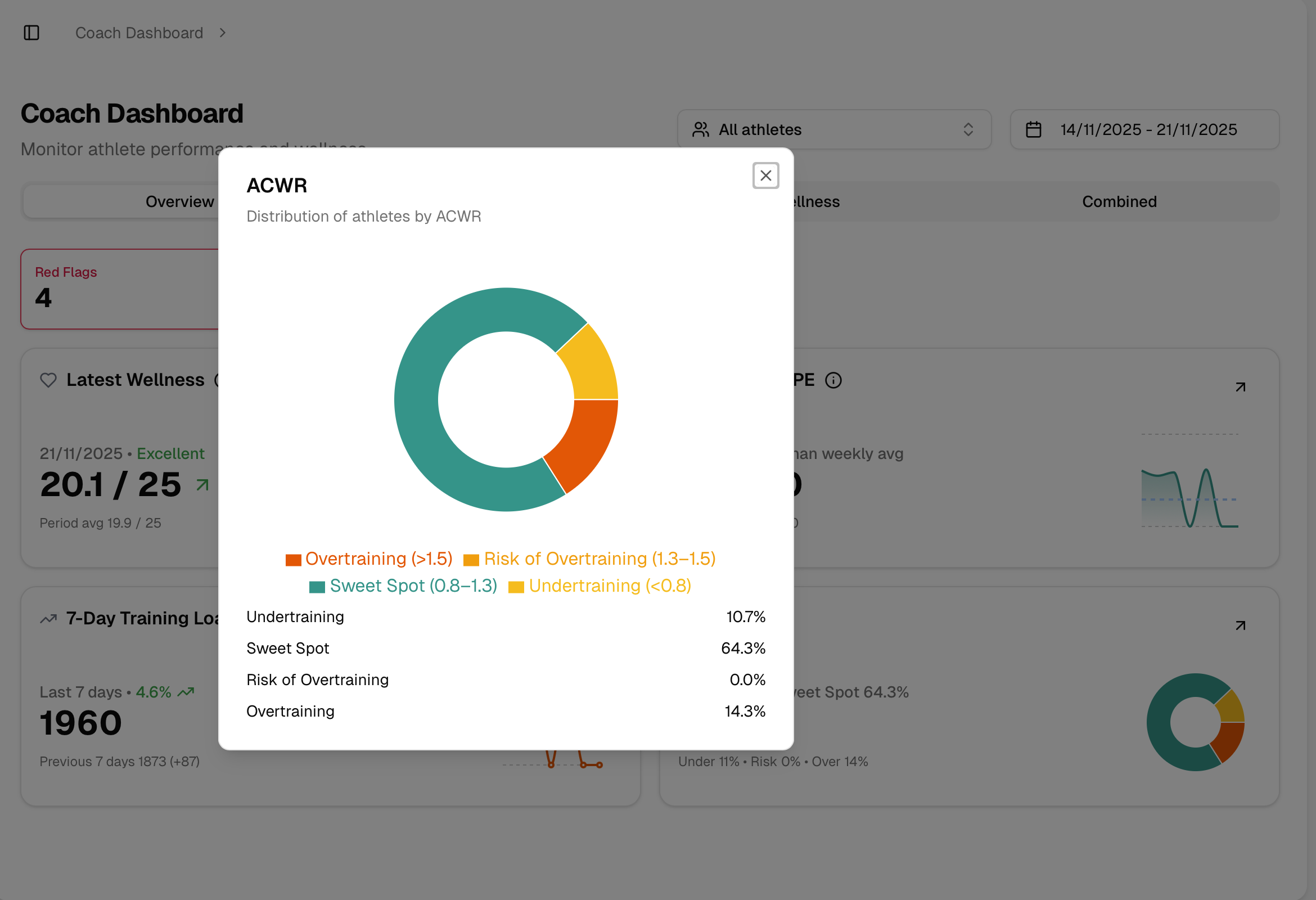
- Choose the players you want to see
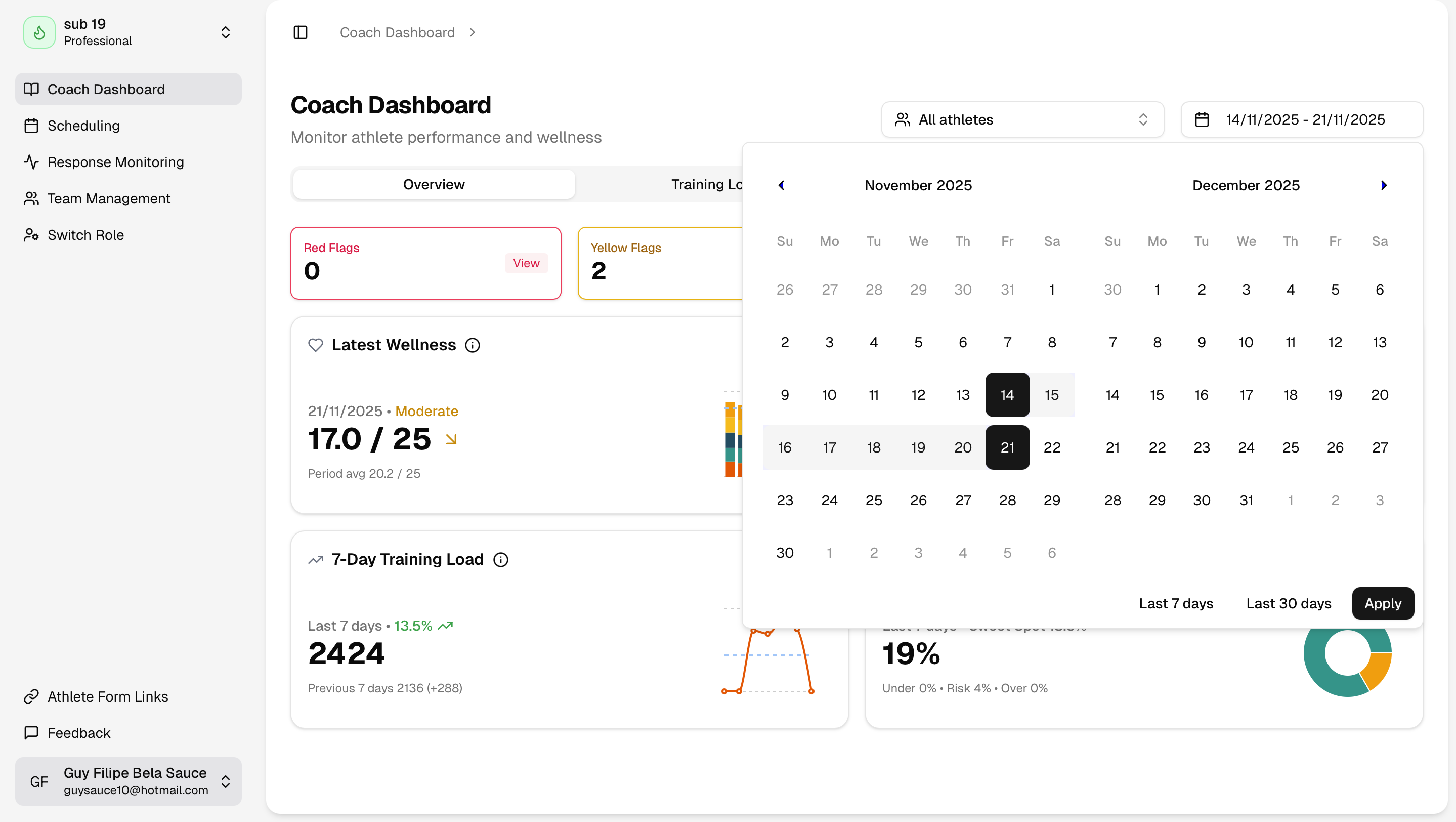
Choose the date filter
Training Load
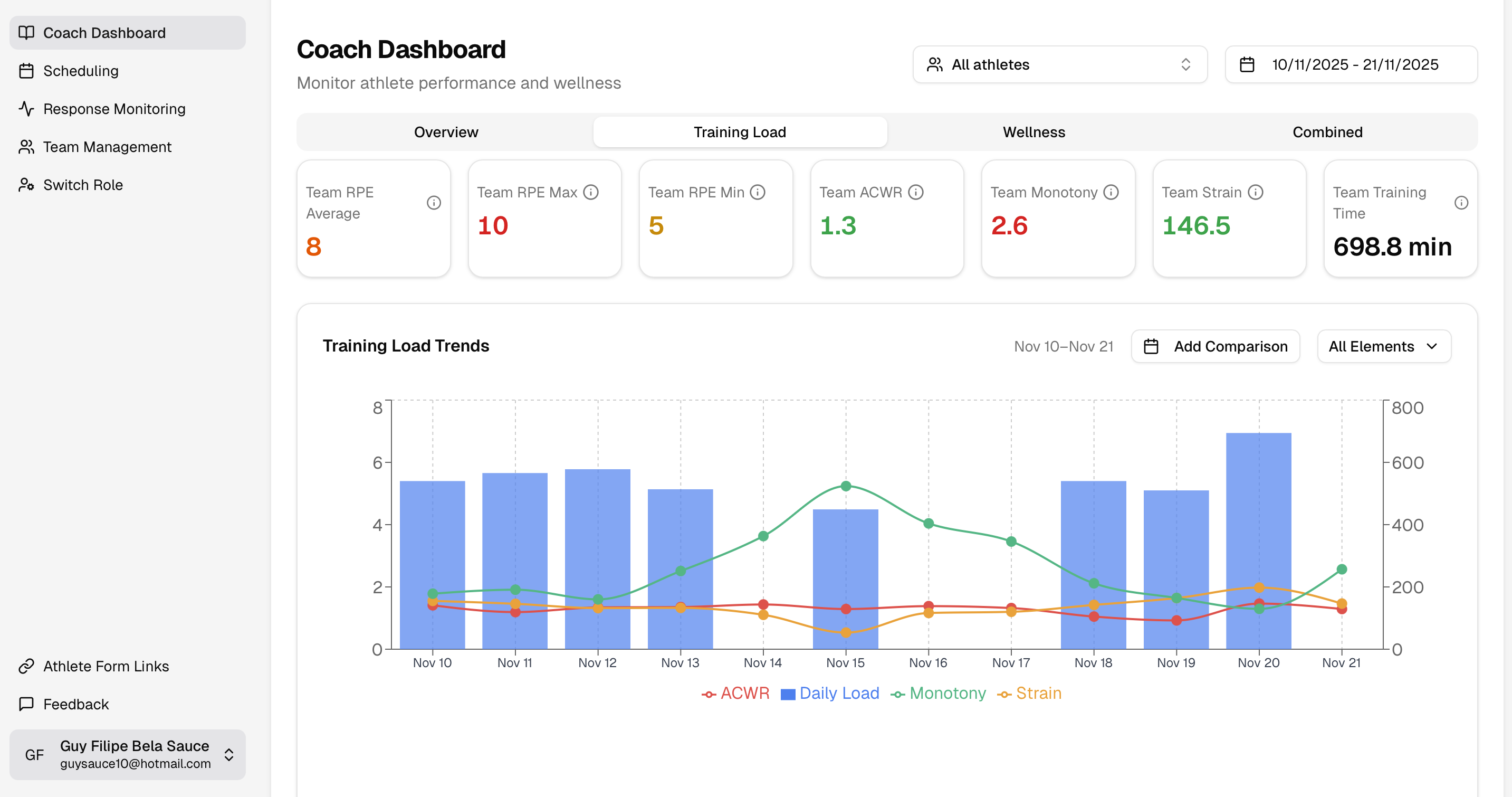
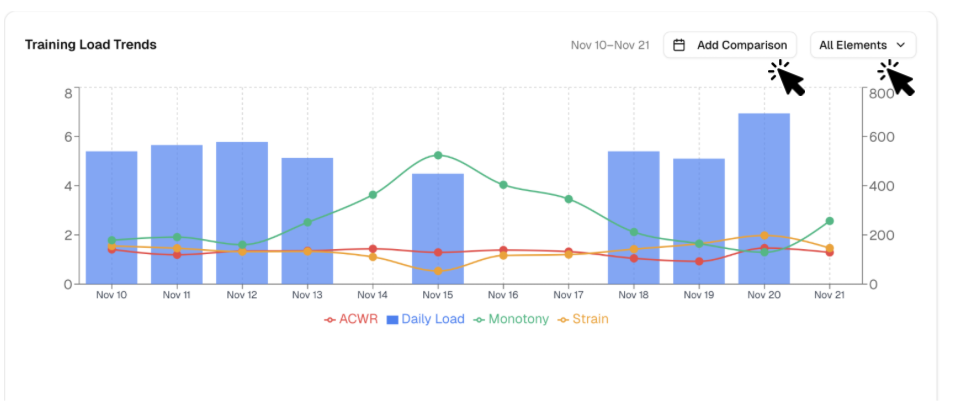
- Add data comparions and/or choose the metric you want to see
Select data range
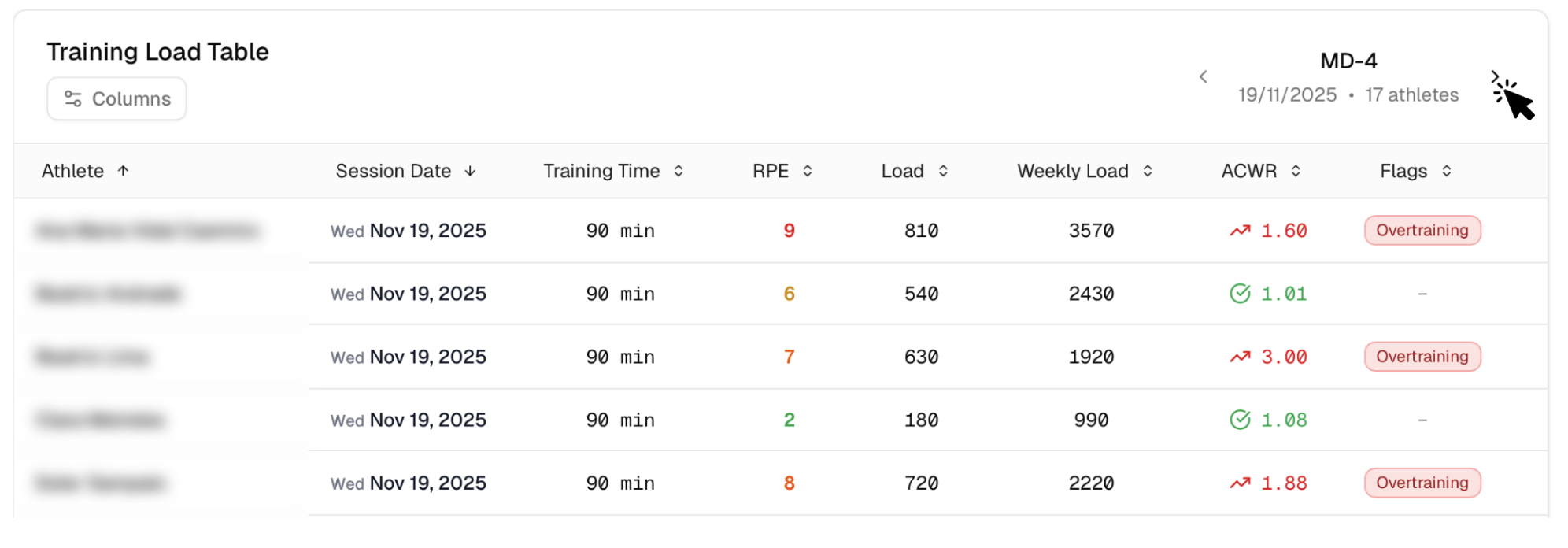
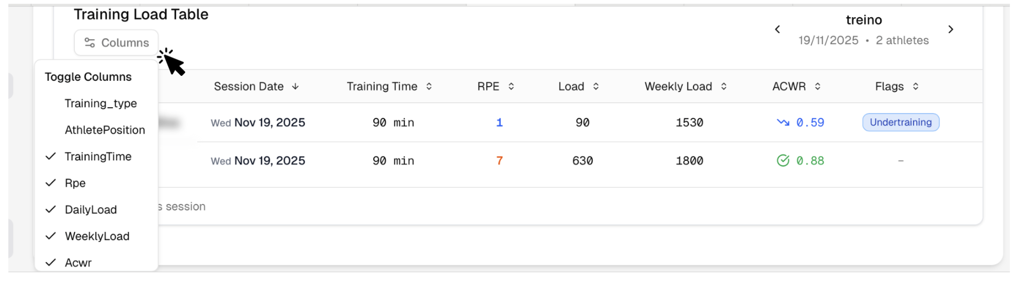
Filter the Columns you want to see
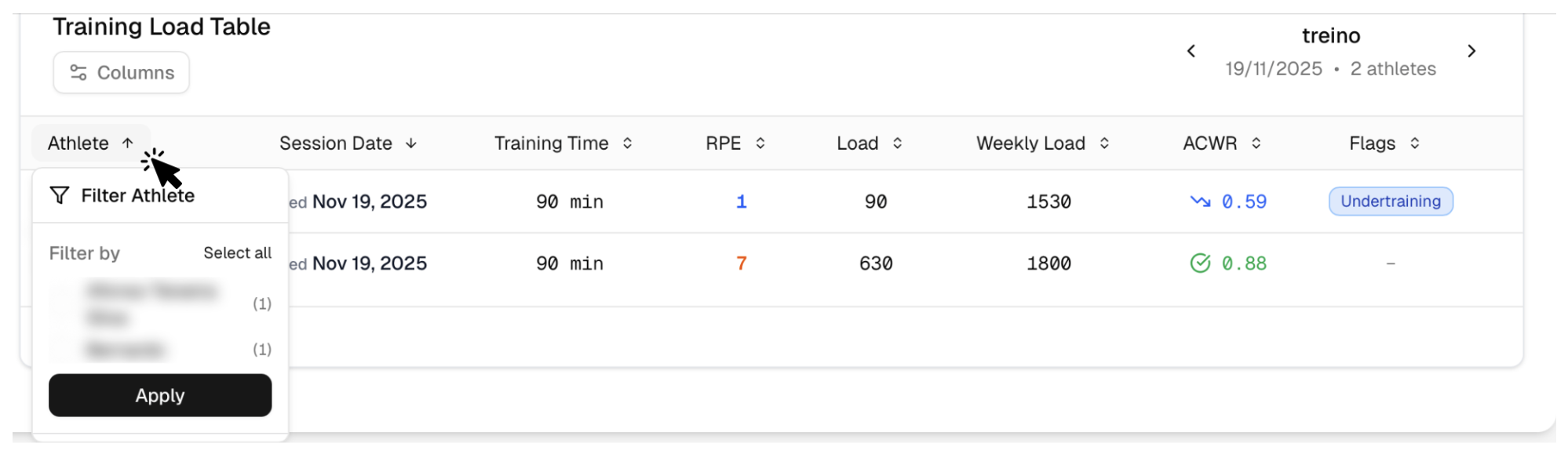
Select the Athlete
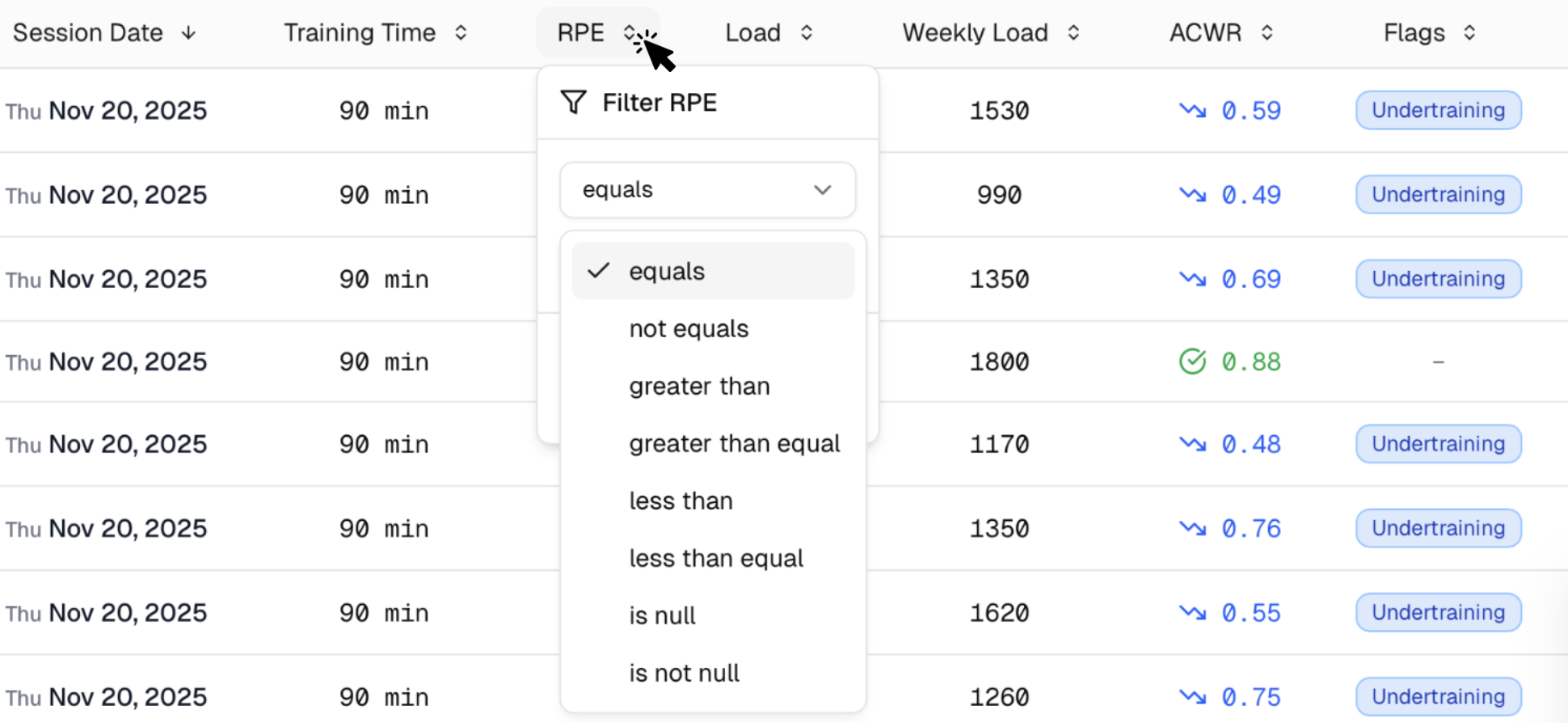
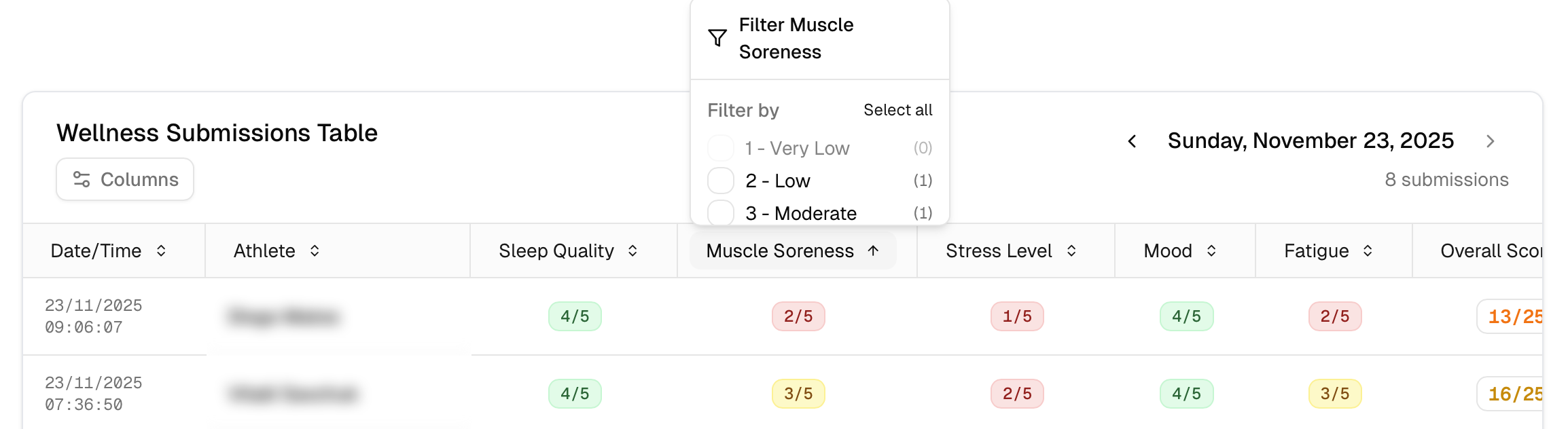
- Choose a filter condition from the list
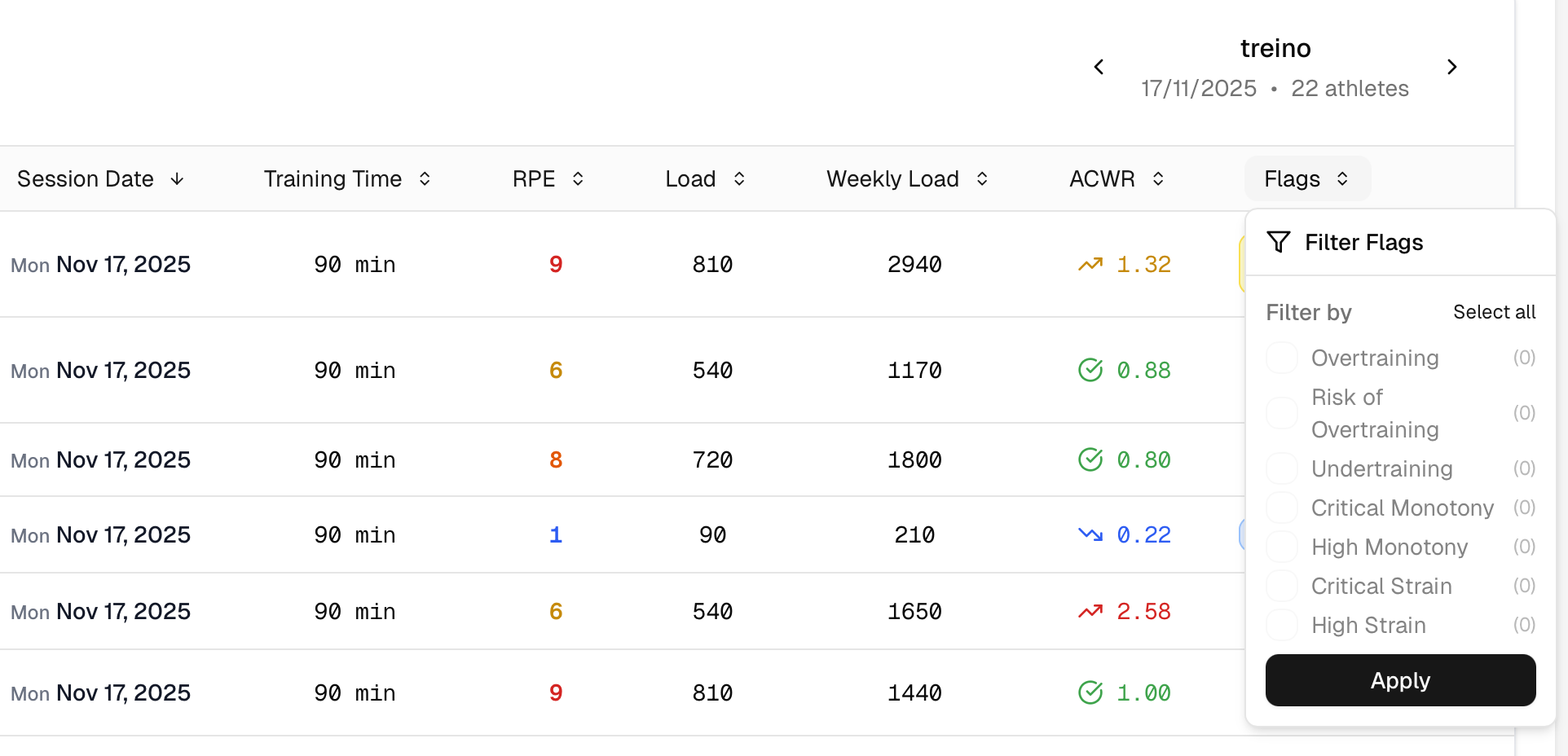
- Choose a flag from the filter
Wellness
- Select in each card what score you want to see
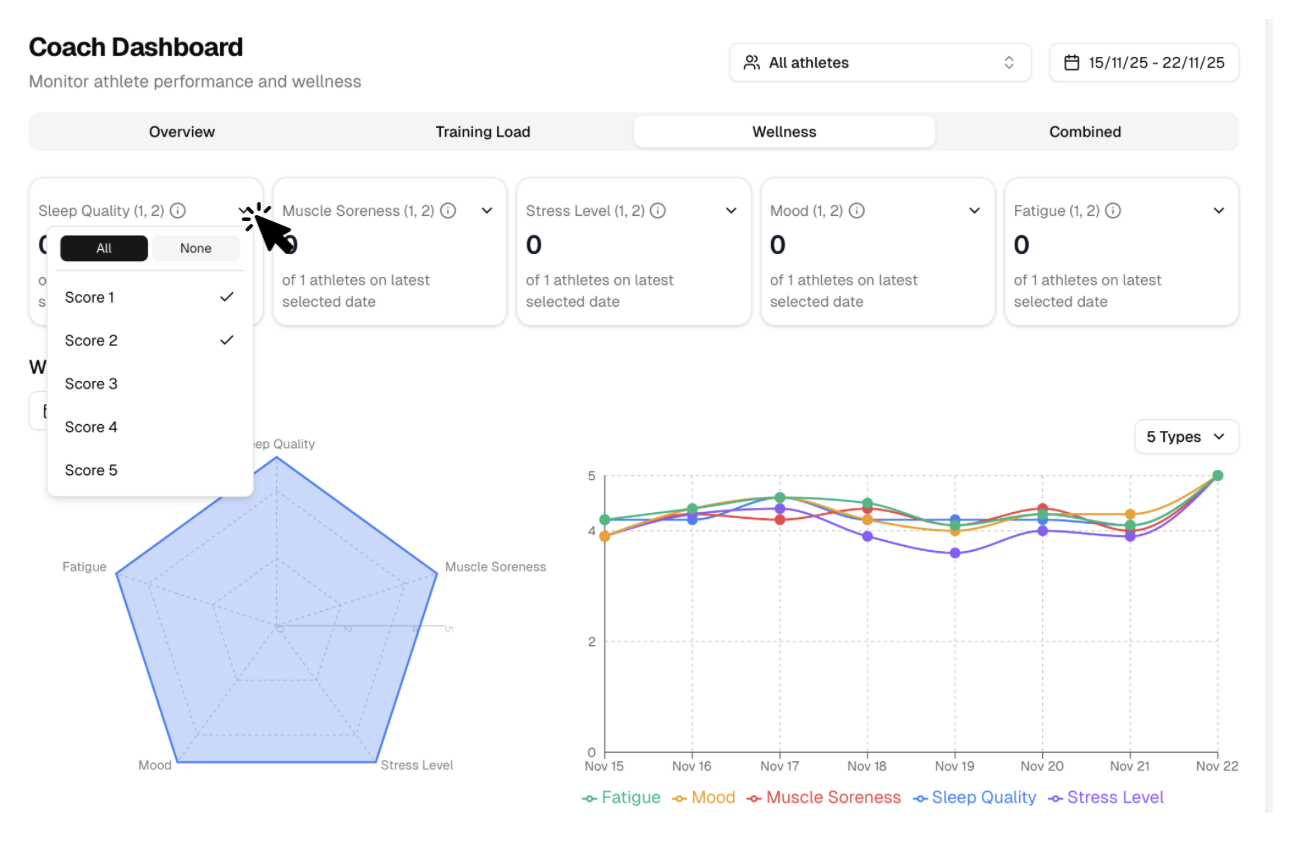
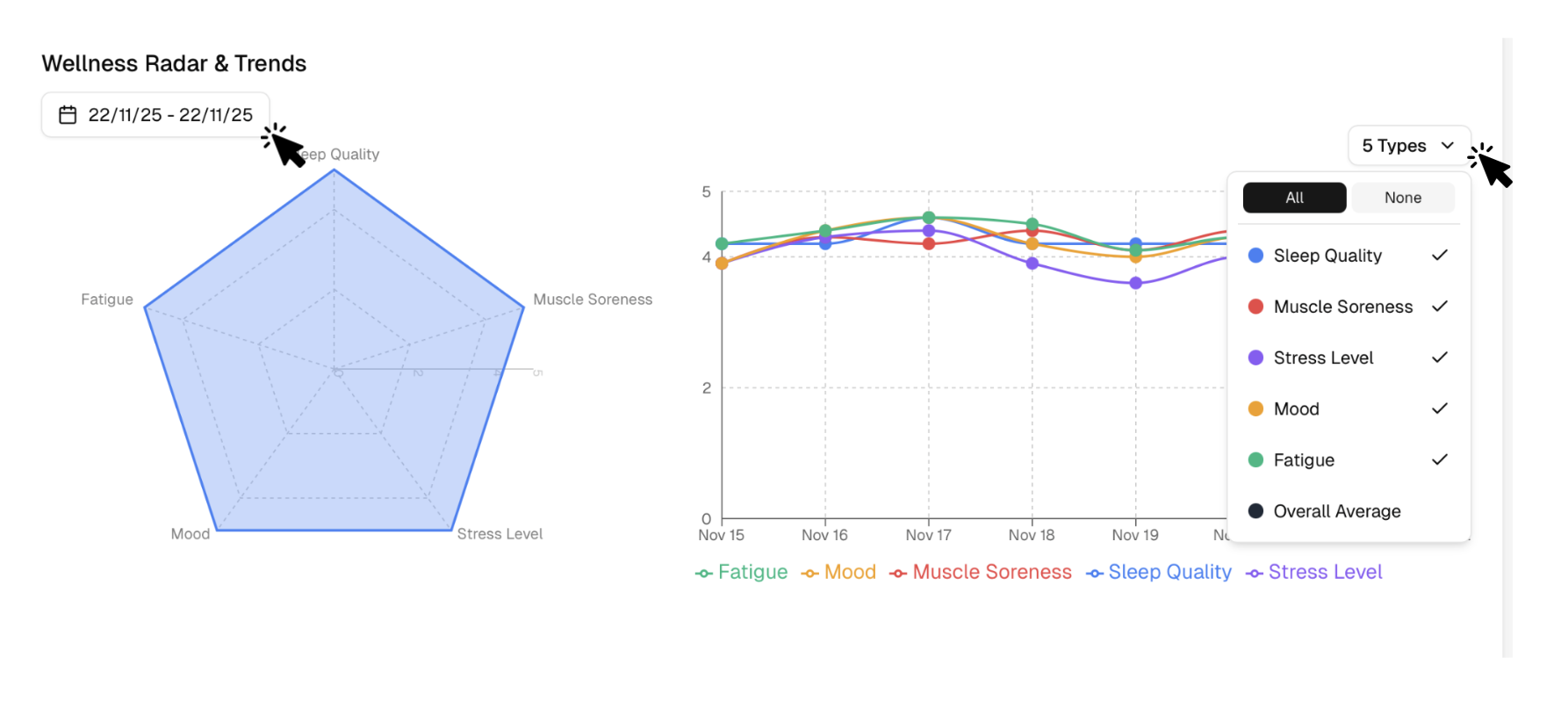
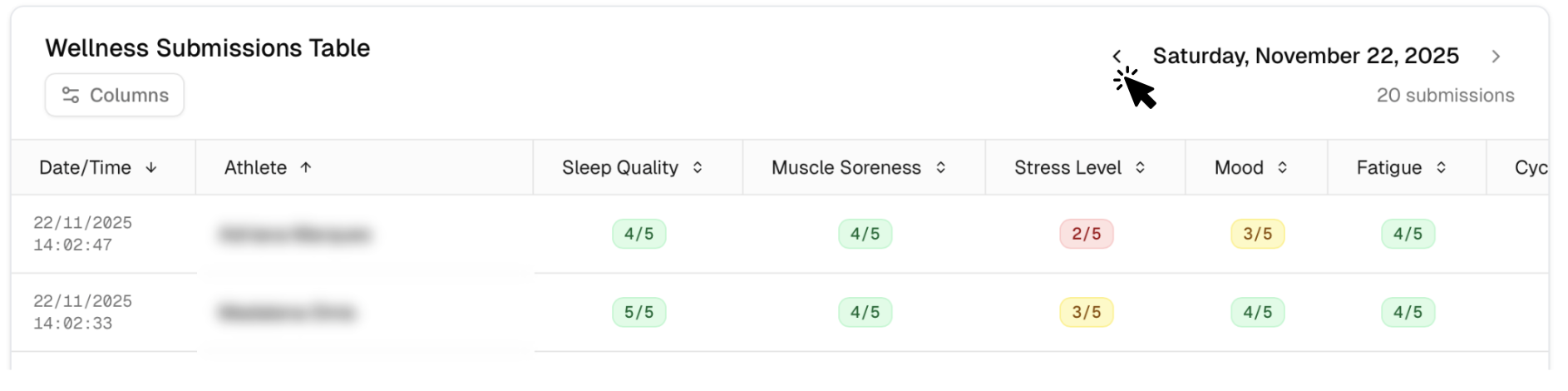
- Click the date range above the radar chart to select the period you want to view. Select which wellness metrics you want to display
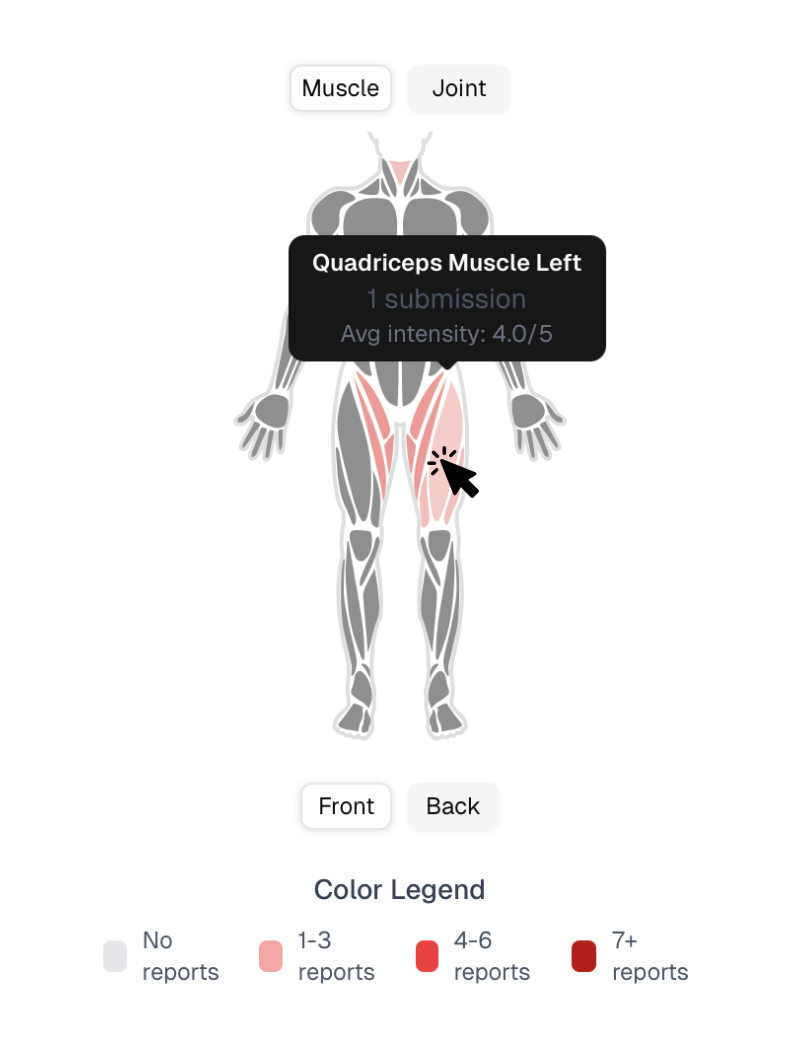
- Hover your mouse over the muscle you want to see
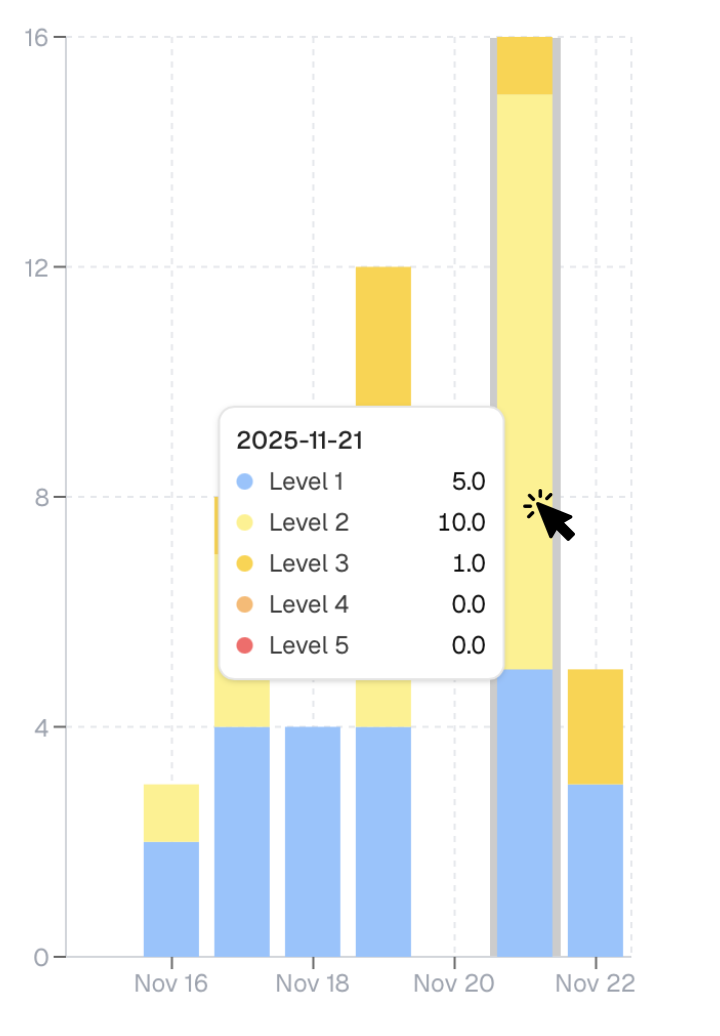
- Hover your mouse over the bar you want to see
- Click the arrow next to the athlete name to see which muscles/joints where reported
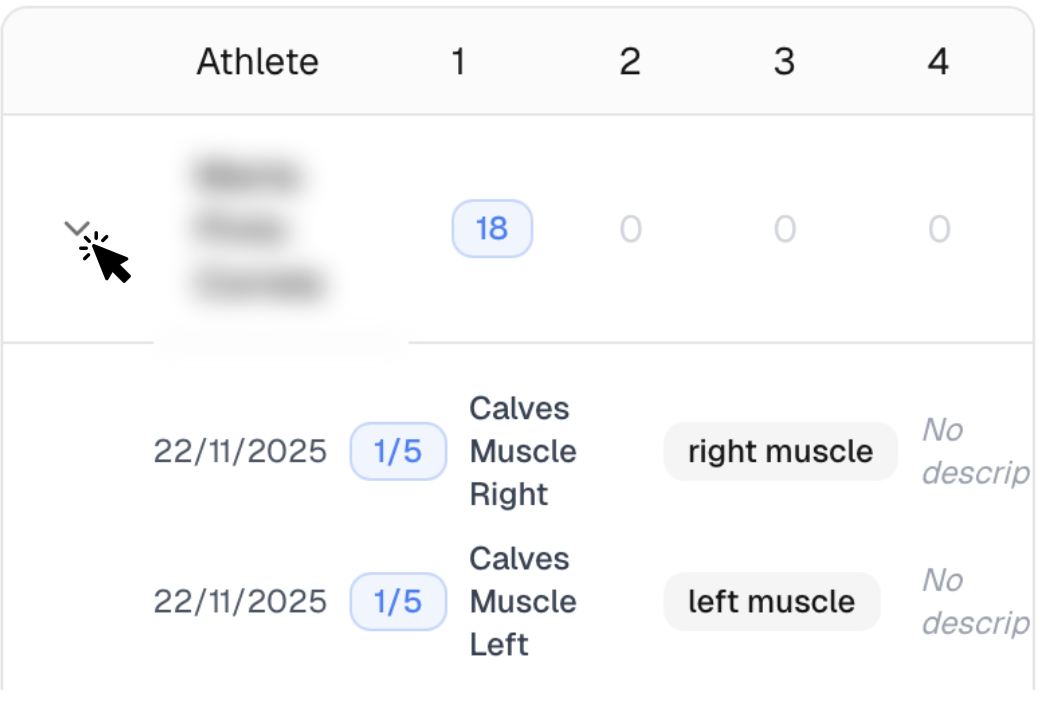
- Select data range
- Choose a filter condition from the list
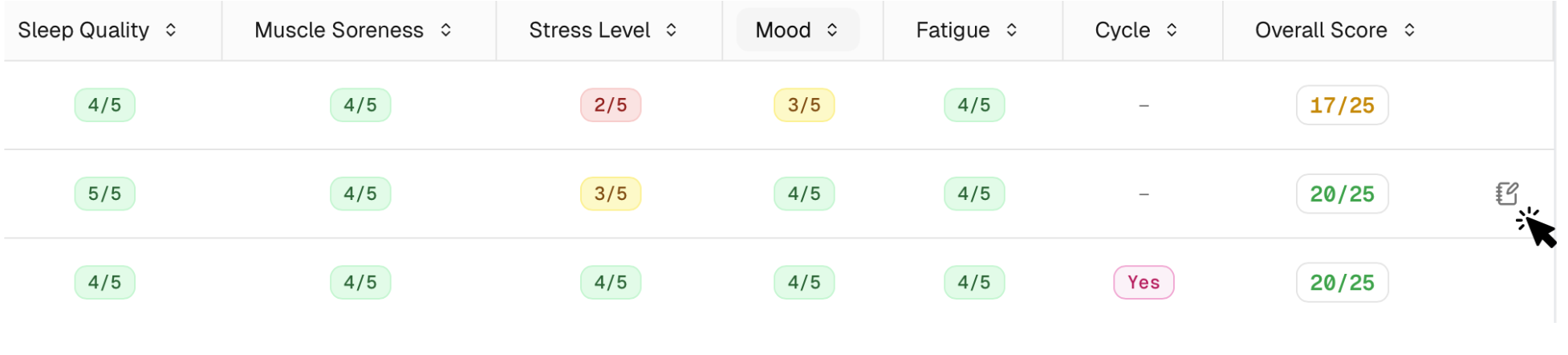
- Click to see view notes
- Hover your mouse over the athlete you want to see
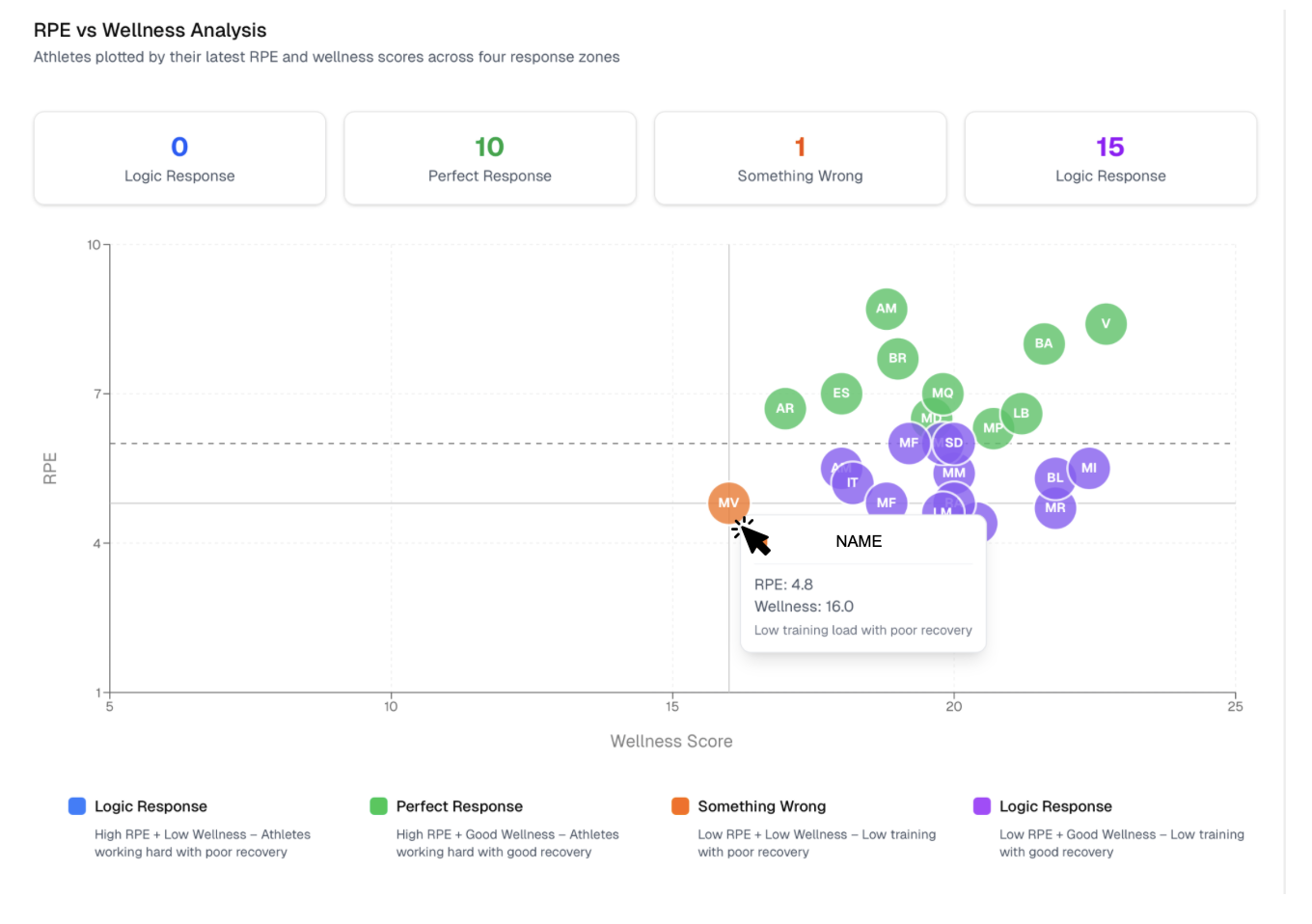
Scheduling
In the Scheduling page you can create the sessions that athletes will have (training sessions / match day).
You must create these sessions for athletes to be able to submit their RPE.
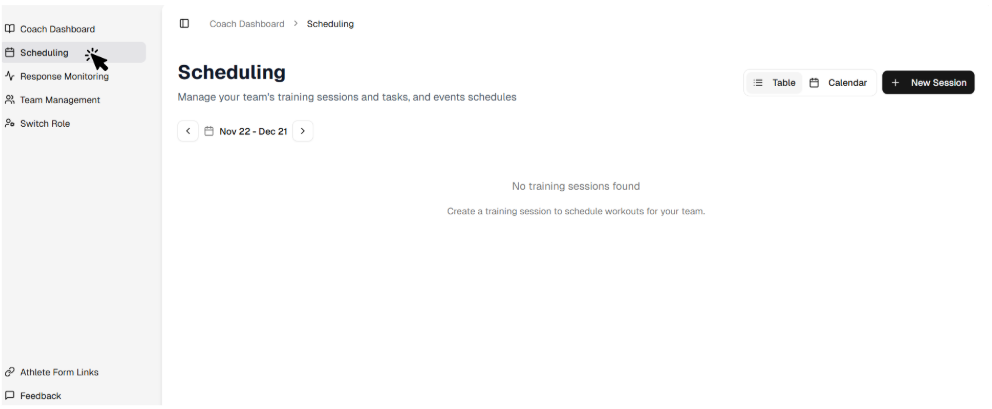
- Click the Scheduling tab on the nav bar on the left
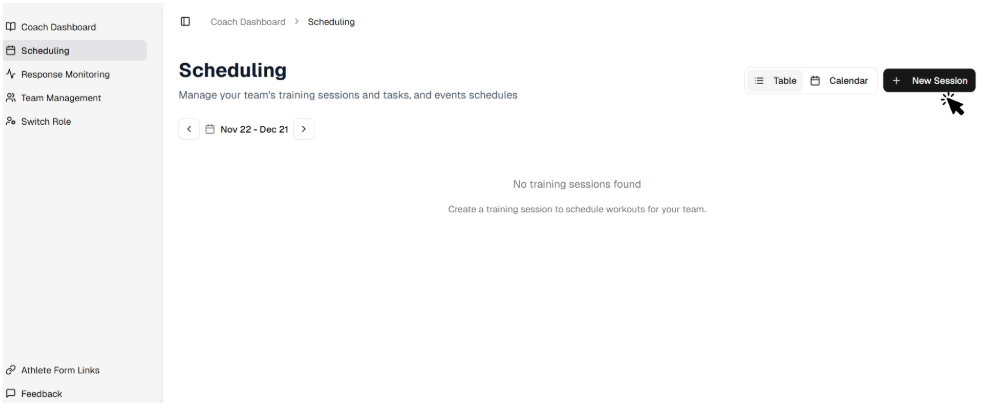
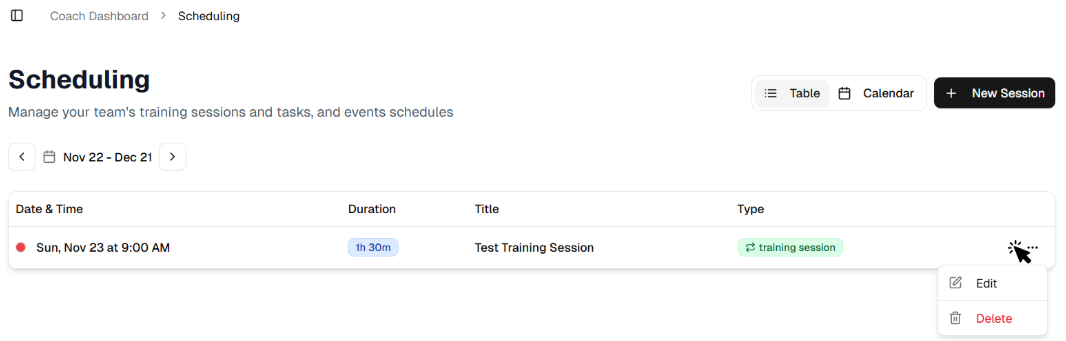
- To create a new session click the New Session black button on the top right corner of the page
- Fill in the required fields - select the session type (training session, match day), select the participants, scroll down, click the create section button
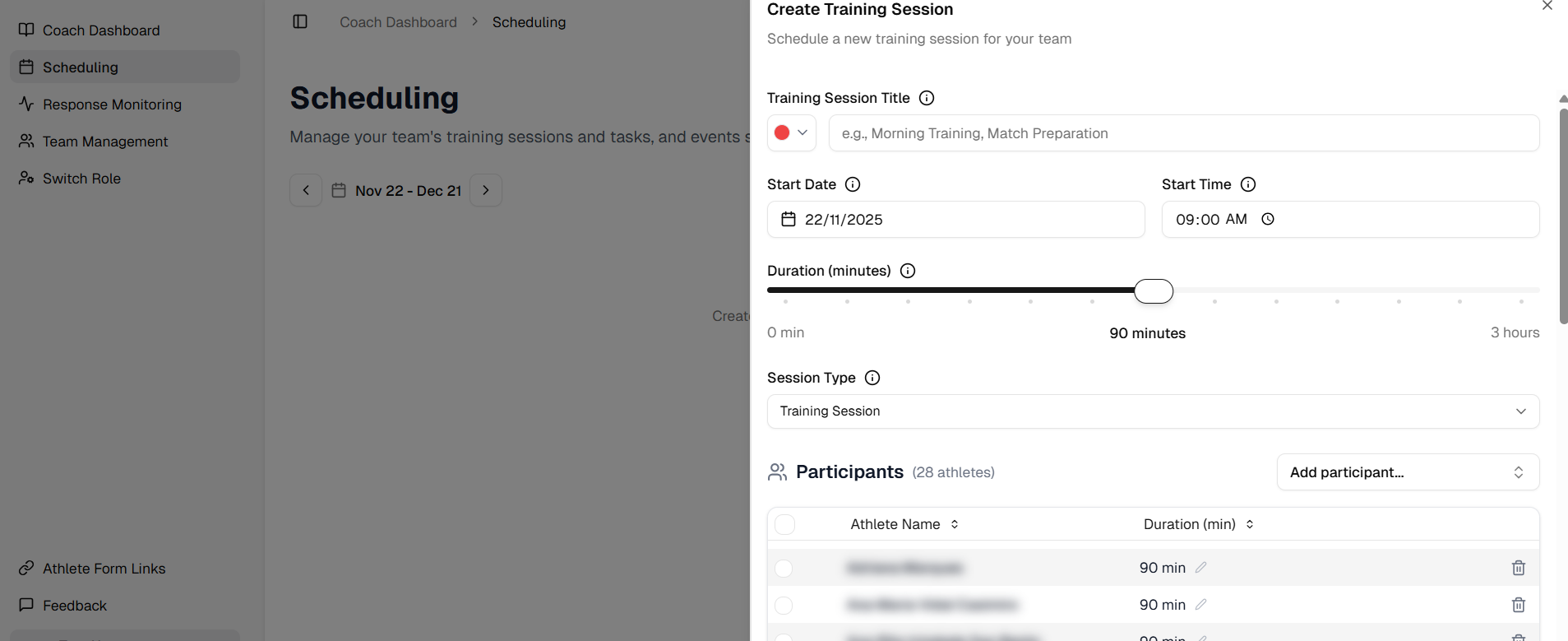
If you want to select all athletes, you can click the square on the left of Athlete Name in the Participants table.
You can adjust the session duration for each athlete after the session by editing the session and changing the duration value in the Participants table.
- You can manage the training sessions in the Scheduling page
Response Monitoring
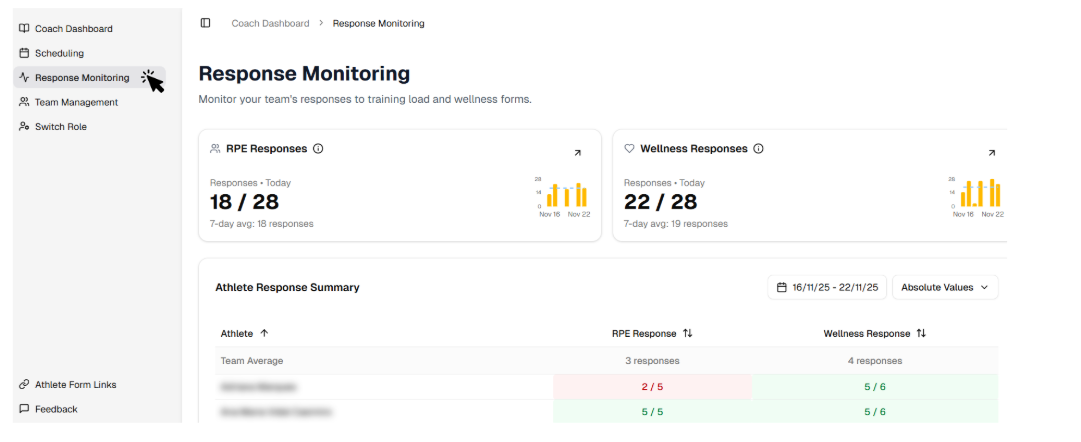
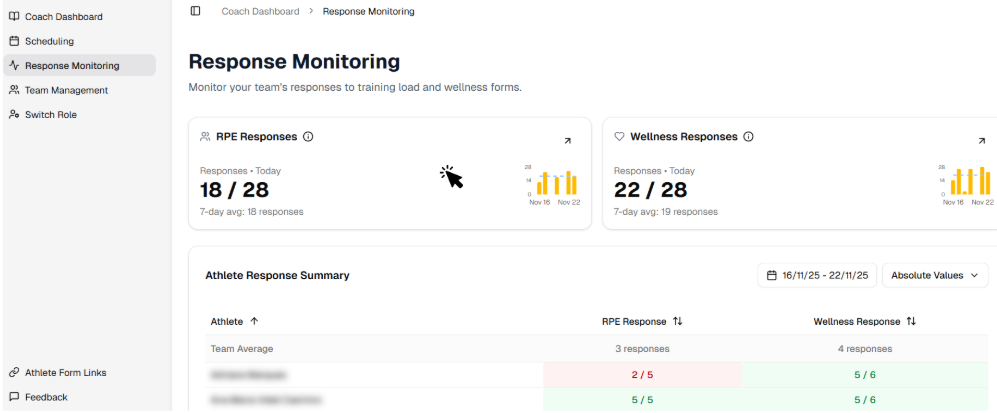
In the Response Monitoring page you will be able to analyse the volume of responses to the RPE & Wellness questionnaires.
The pages show the aggregated results for the team, and also a detailed view for each athlete. By clicking each card you will be able to manage individual responses.
- Click the Response Monitoring tab in the the nav bar on the left
- If you click the RPE Responses Card you will open a Dialog box where you can see which athlete responded or not, and manage the responses the responses of each athlete
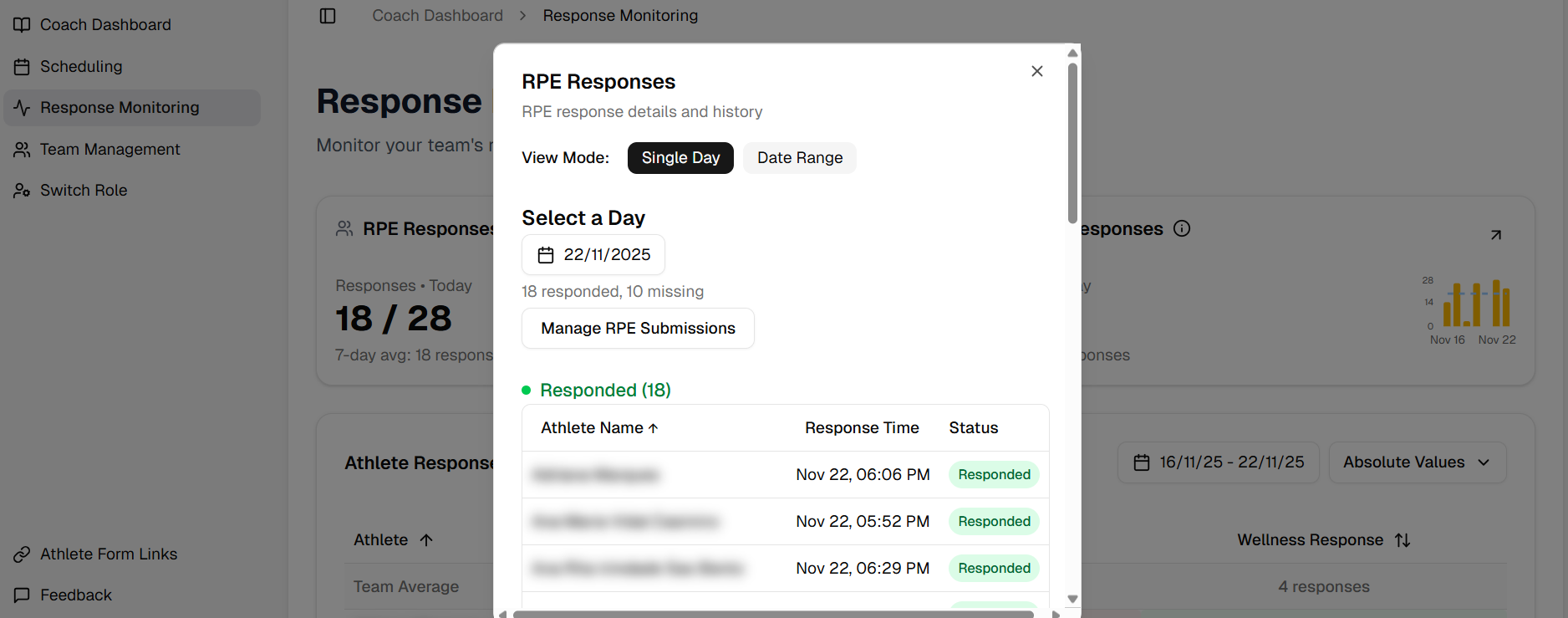
- To manage the RPE Submissions just click the Manage RPE Submission button above the table
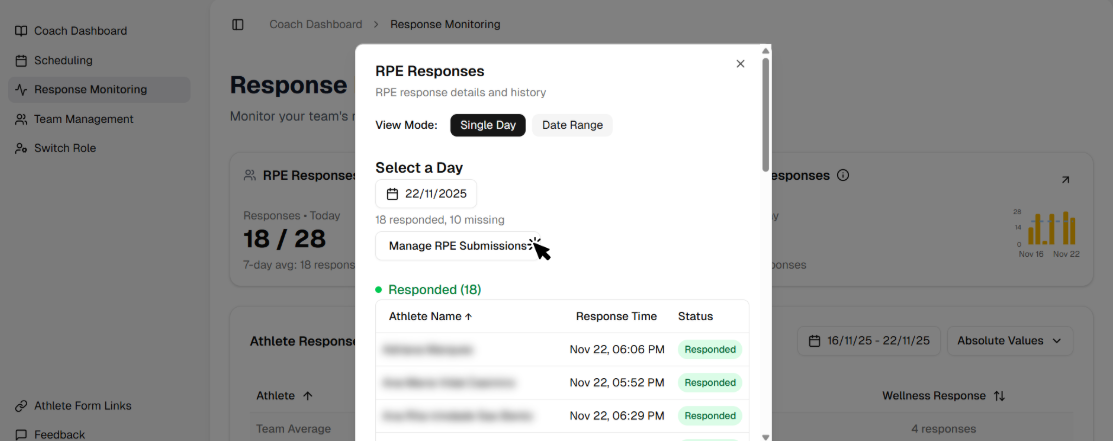
- Click the RPE cell in the table to edit a value or add a value to a empty cell. You can also add notes to the training session of each athlete - these will only be visible to you

Team Management
- Select what columns you want to see
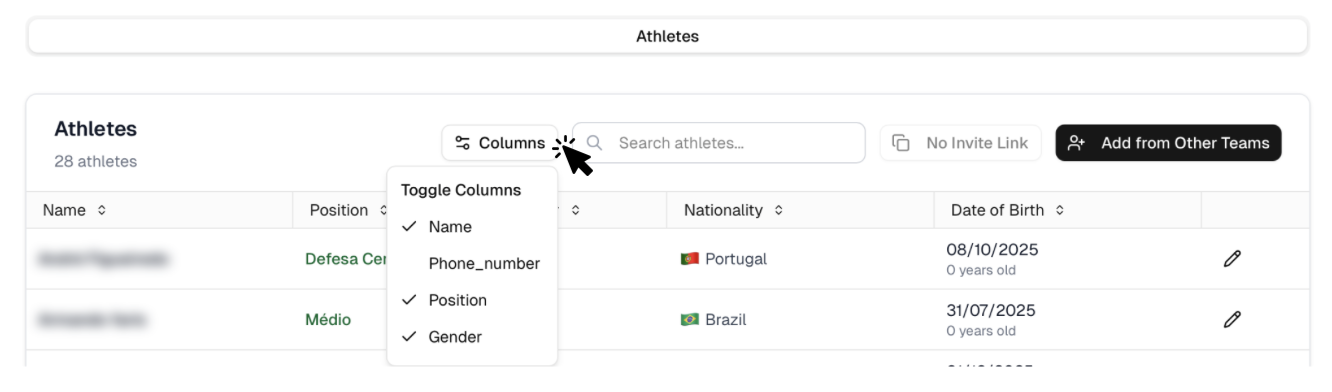
- Select the filter in each columns
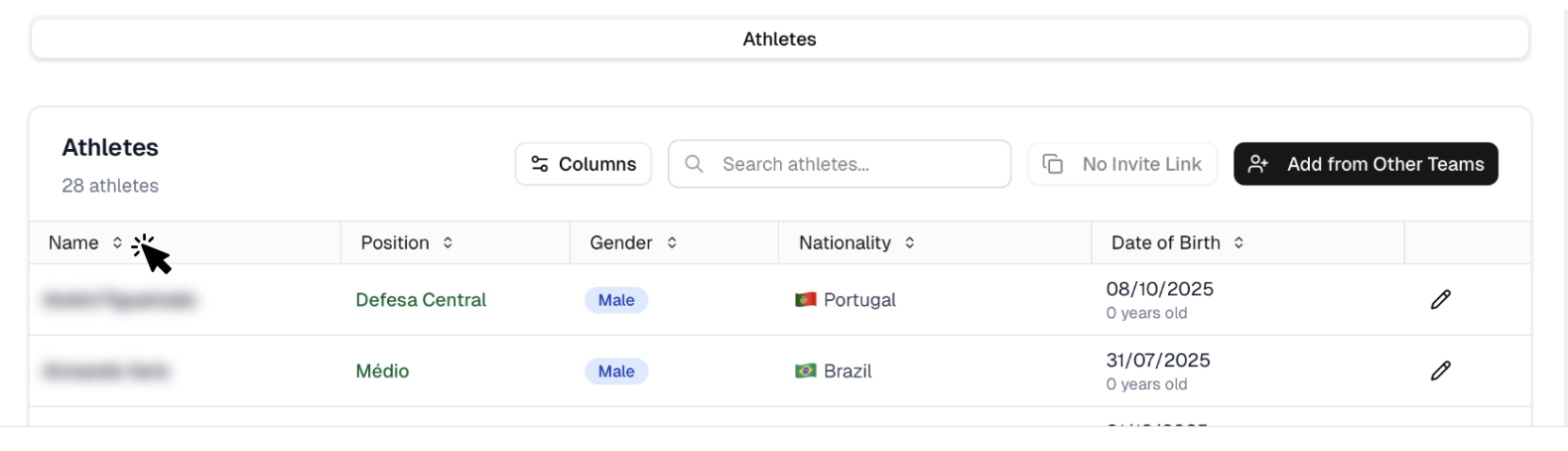
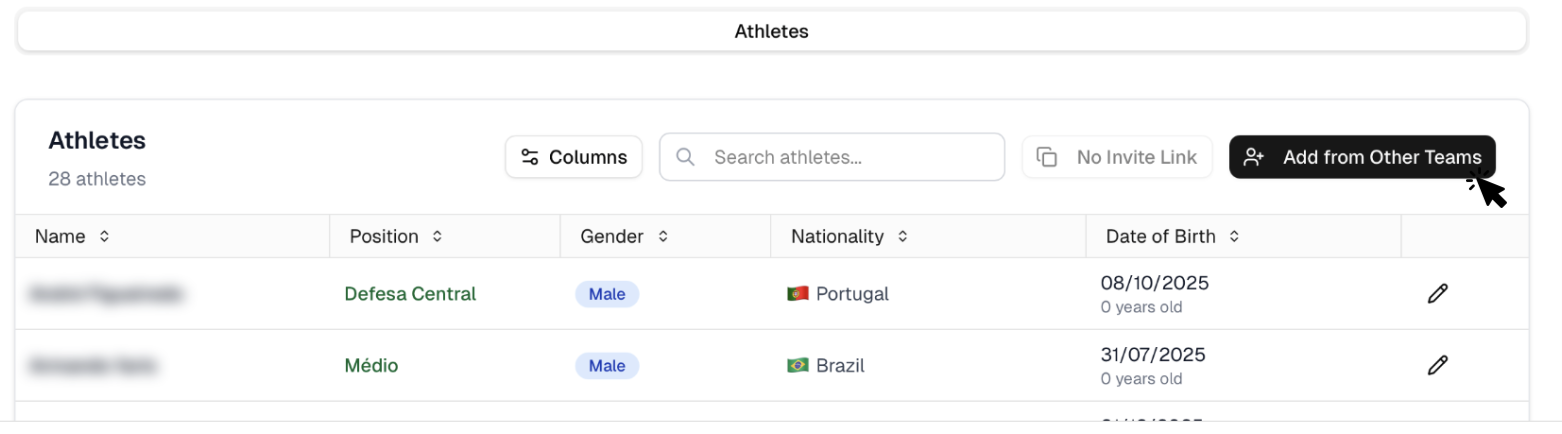
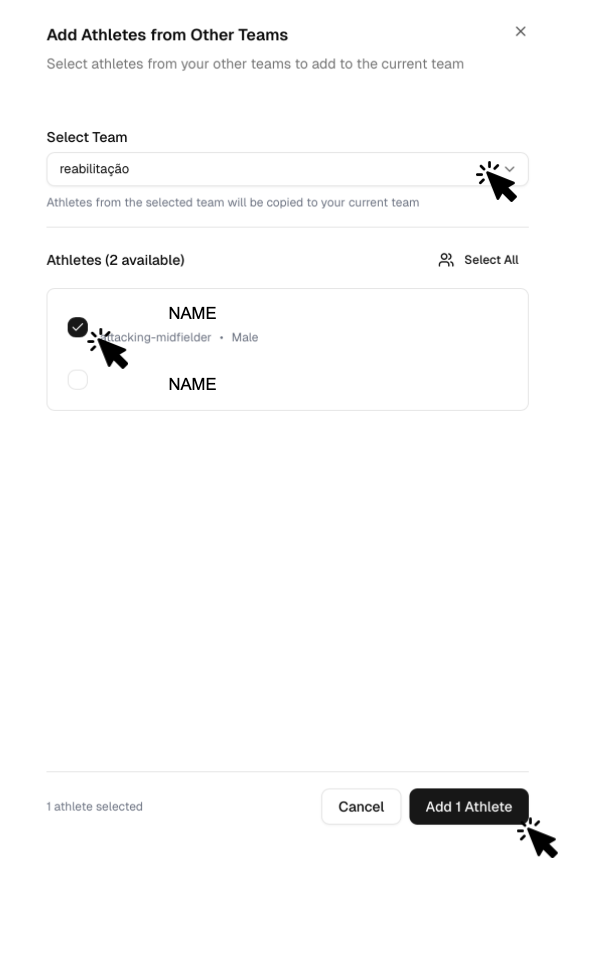
- Add player from other teams