Admin
Initial Set Up
- Click in the Get Started Button to get access
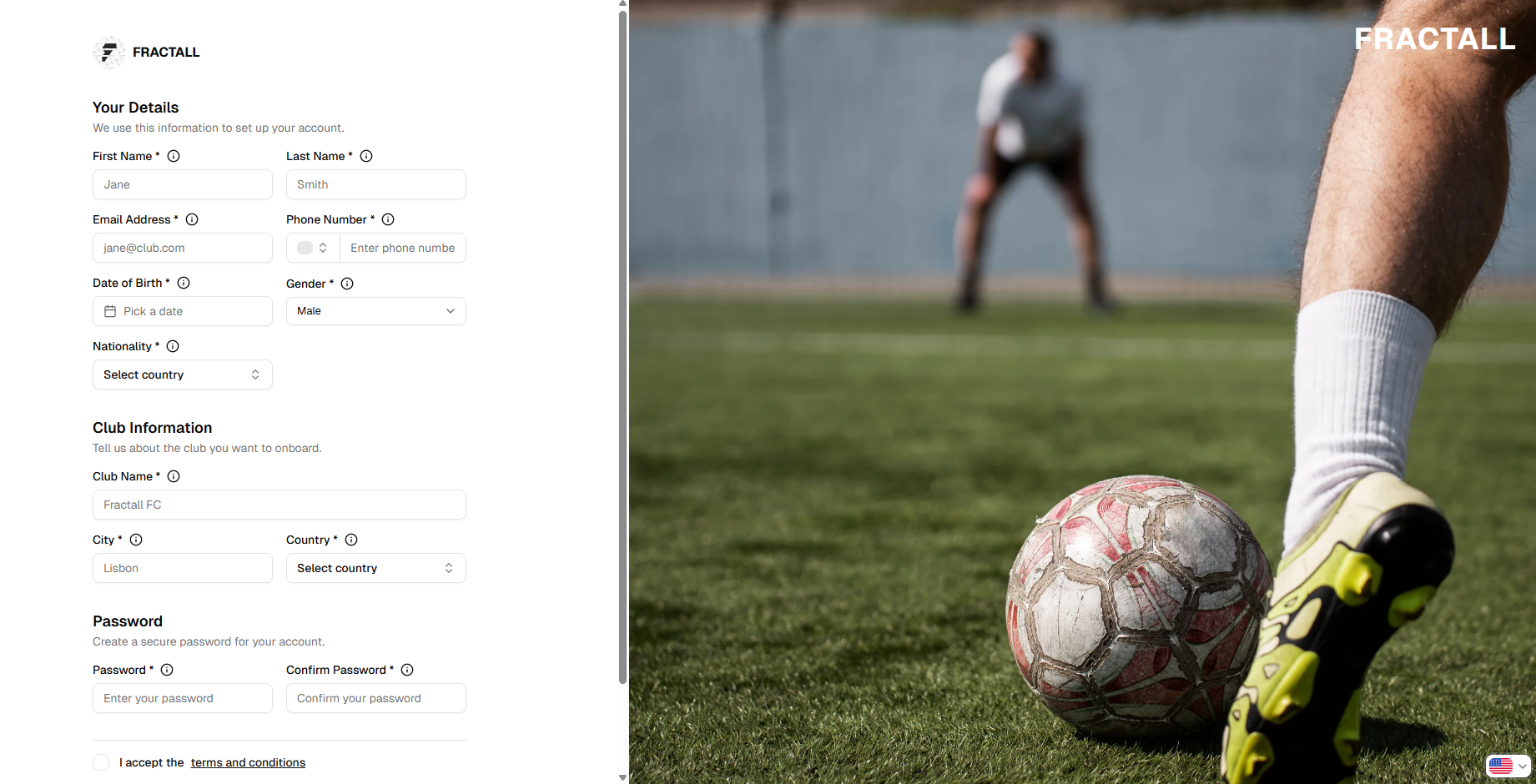
- Complete you profile by filling in the required fields
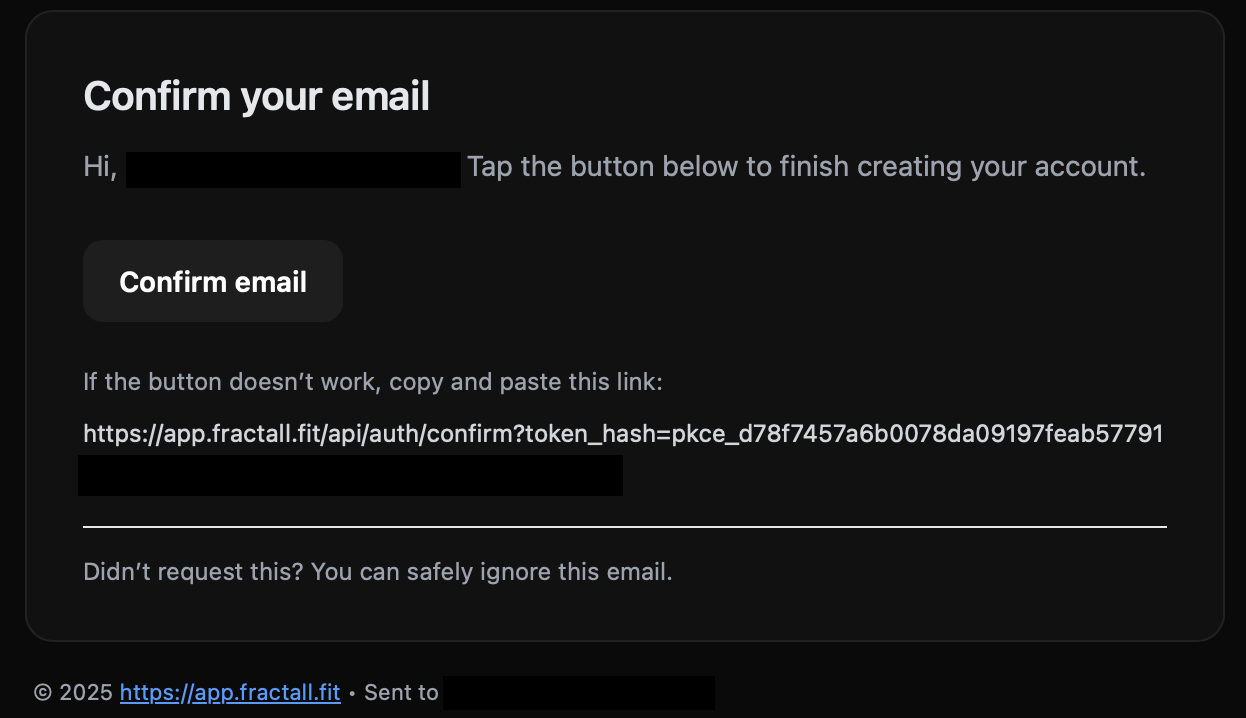
- Verify your email
- Go to your email inbox
- Find the fractall.fit email (check your spam folder if you cannot find the email in your inbox)
- Click the “Confirm your mail” link
Add Team(s)
- Click the “+ Add Team” blue button on the top right corner
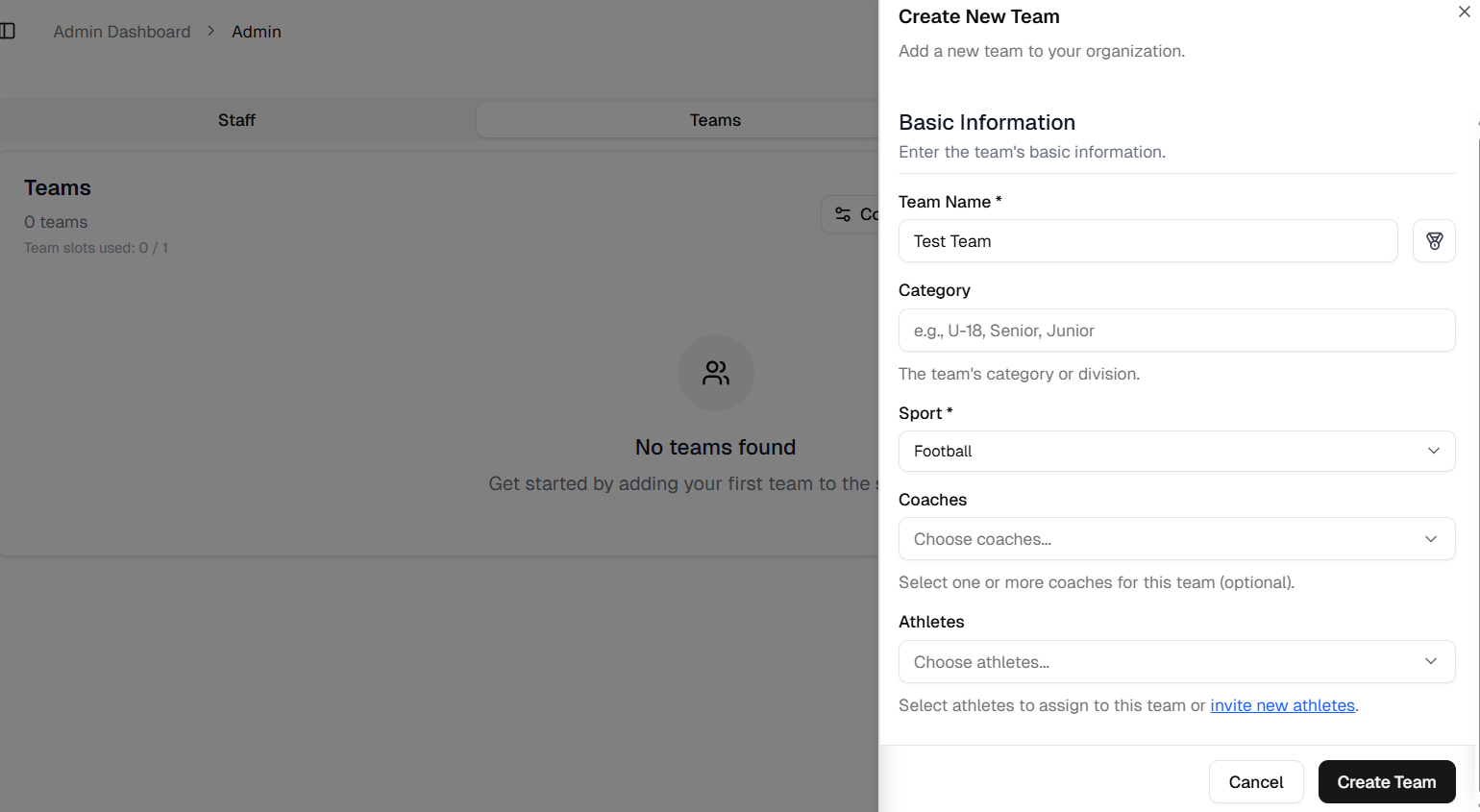
- Fill in the required fields.
Only Team Name and Sport are mandatory, you can leave the rest blank.
- Success! The team is created. You can see it in the page.
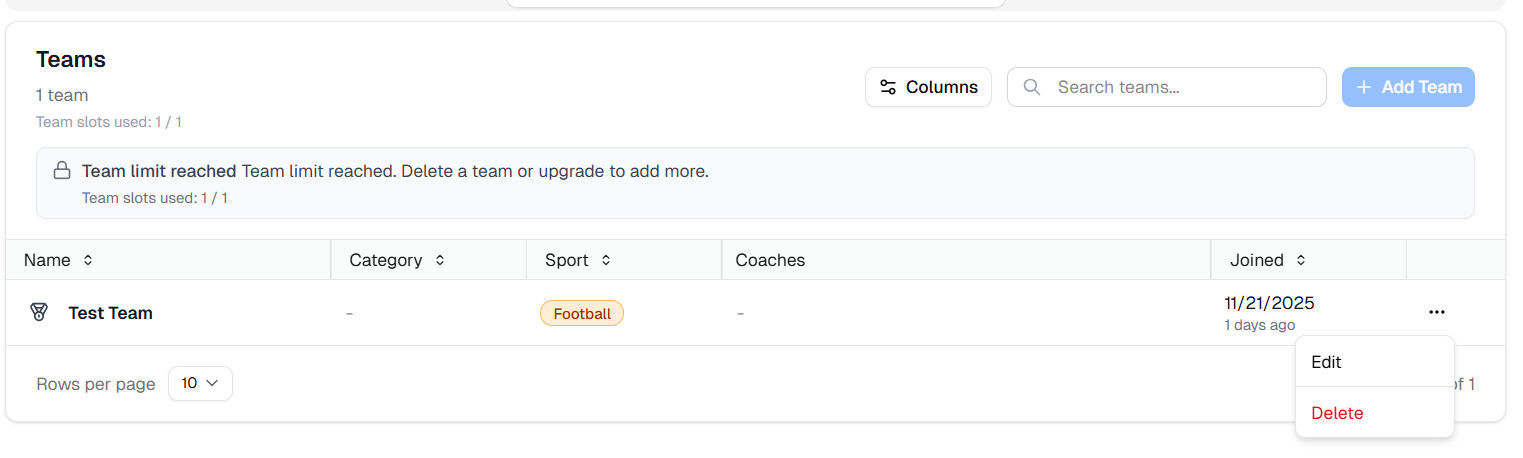
You can edit or remove the team by clicking the three dots on the right
Add Staff
You have two options to add new staff - coaches - through an invite link or manual creation.
Invite link
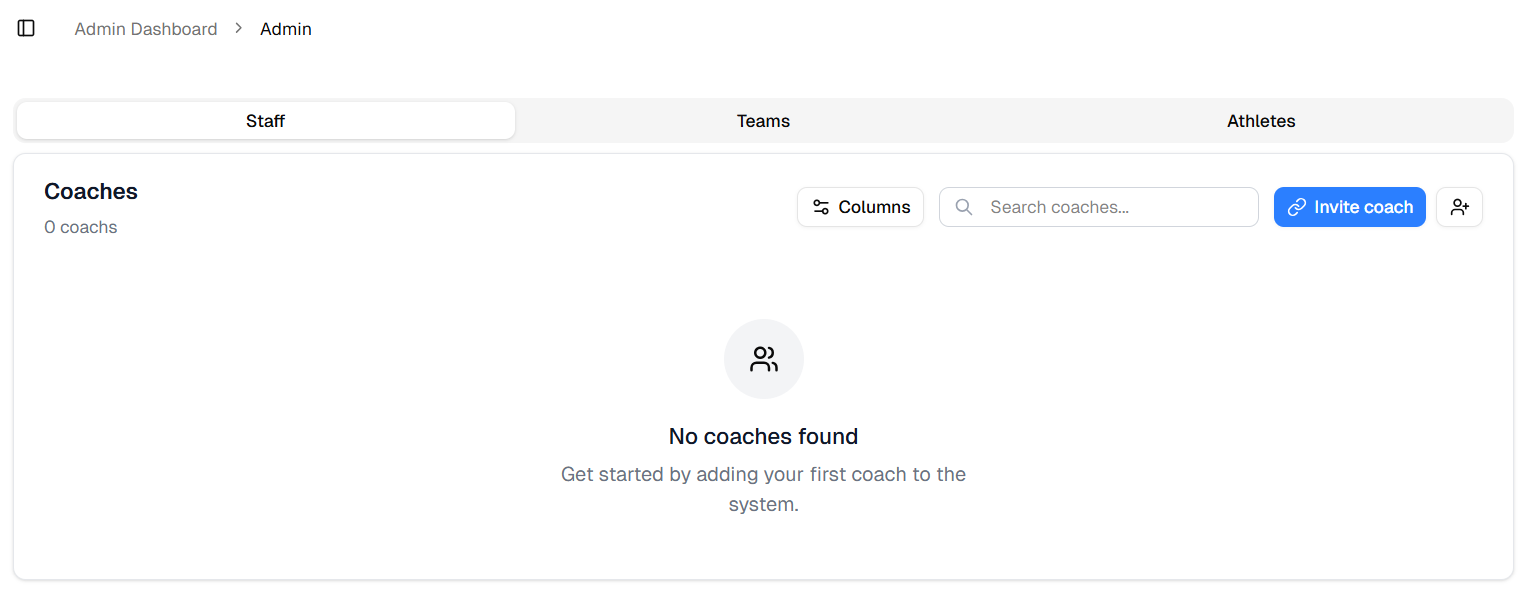
- Click the blue button on the top left corner saying Invite coach
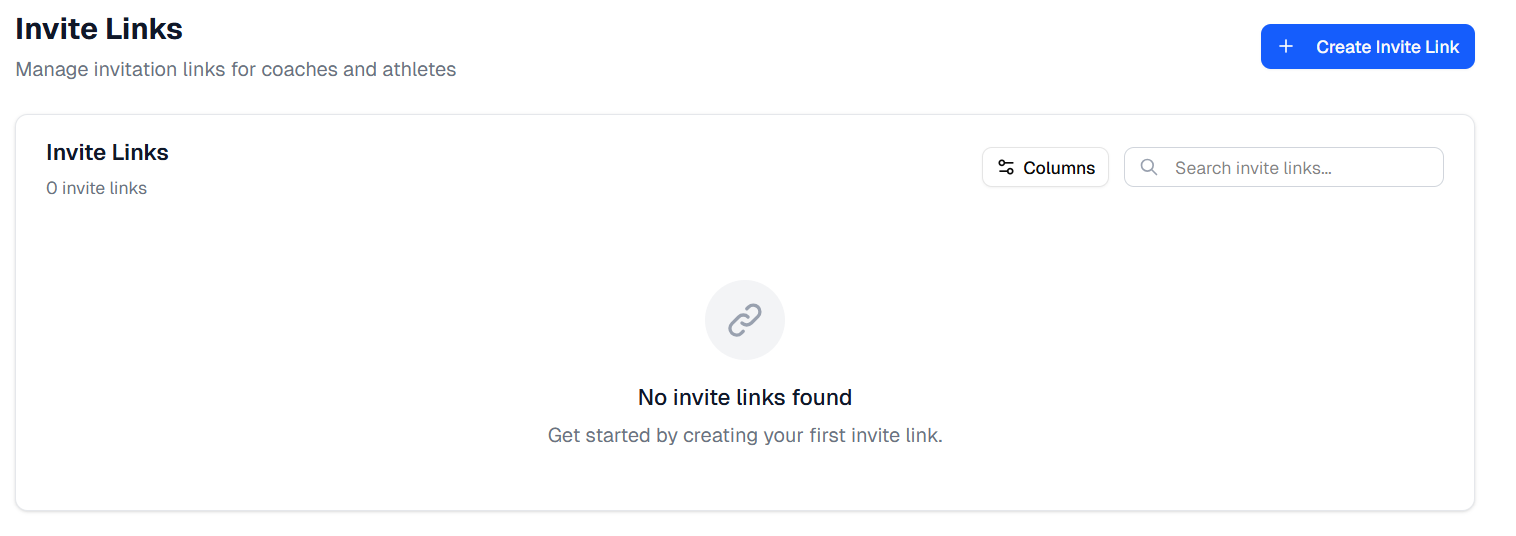
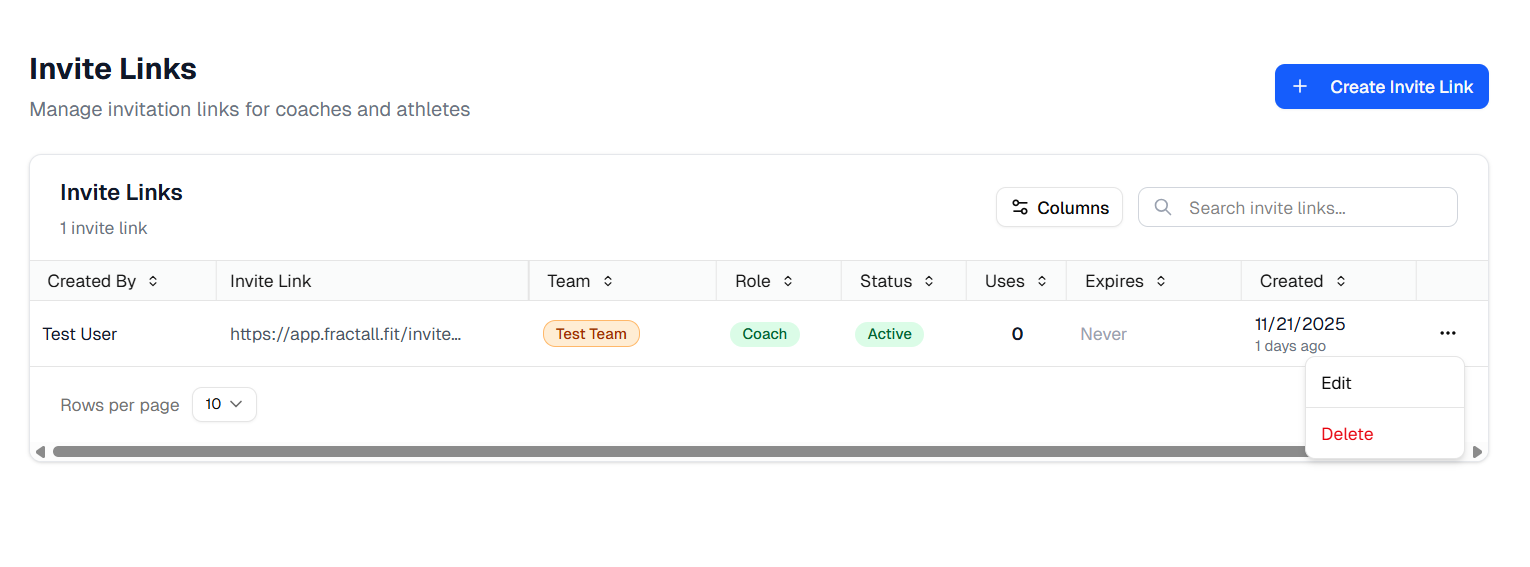
- You will be redirected to the Invite Links page, where you should click the Create invite link button on the top left corner
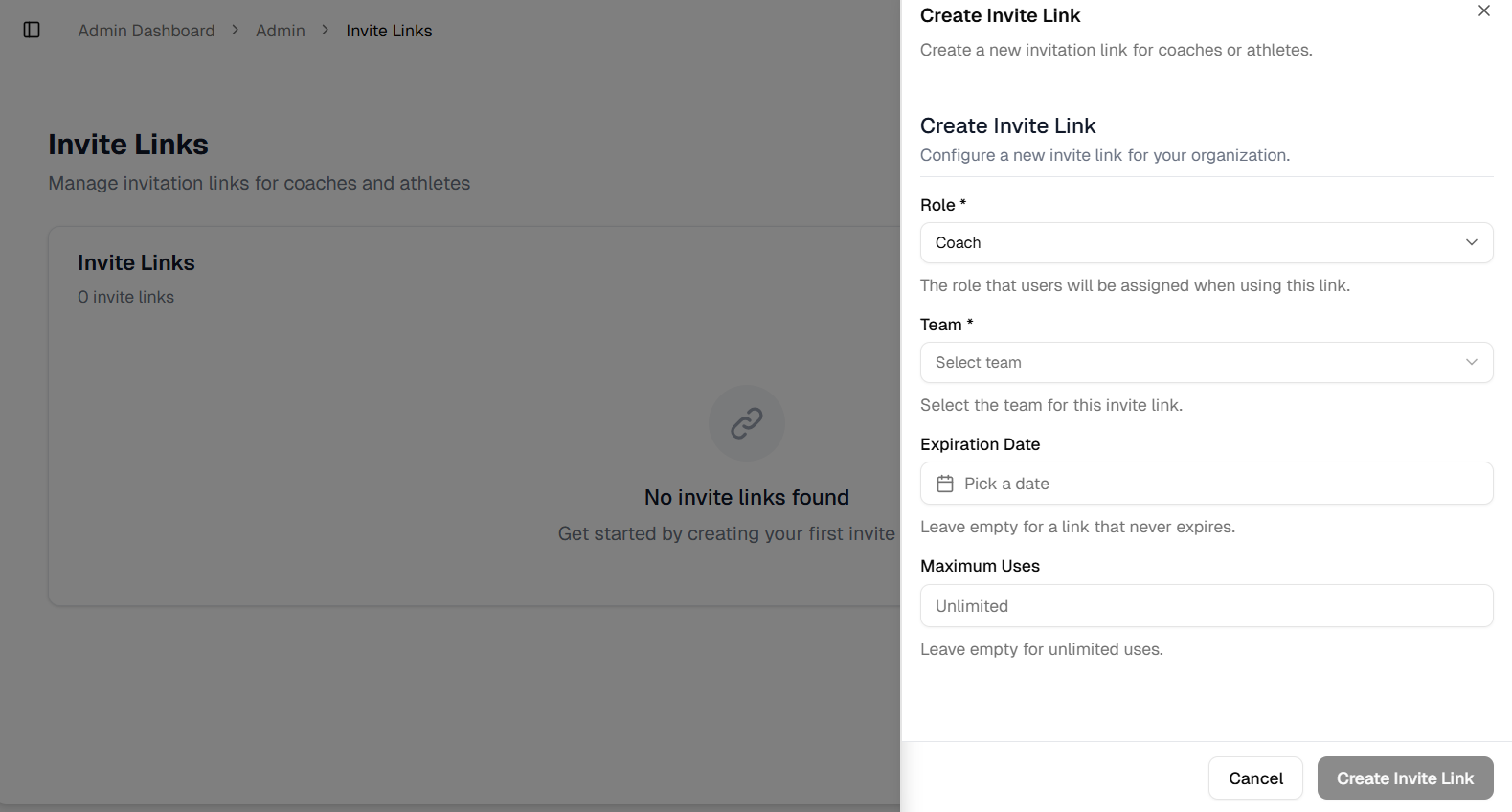
- Fill in the required fields
- Copy the invite link and send it to the new user.
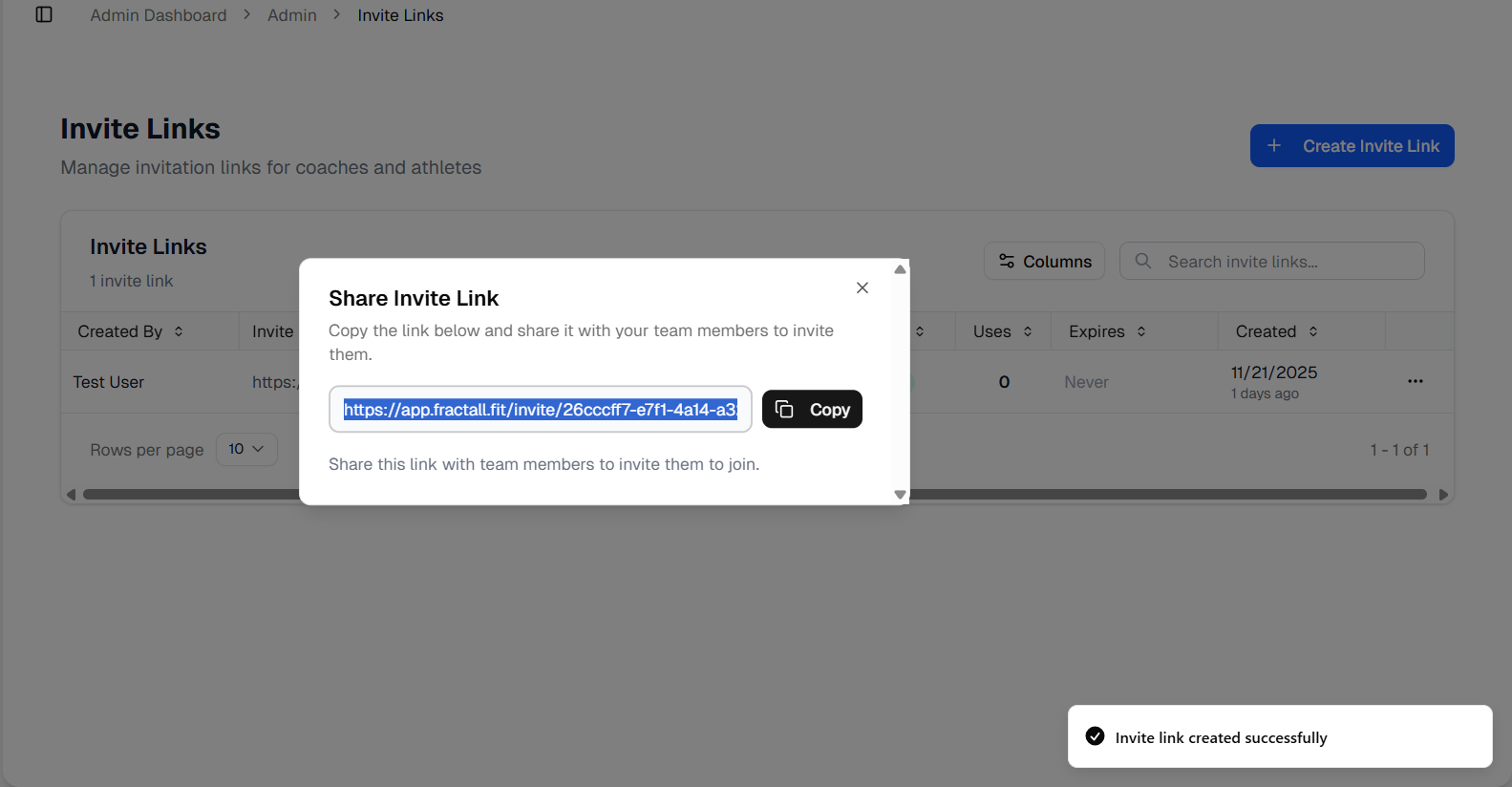
You can send it through any platform (e.g. WhatsApp, messenger, SMS, etc.)
- You can manage the invite link in the Invite Links page.
Manual Creation
This only works if you want to create a coach that already is a registered user on the platform.
Example: If you are an admin and you also want to have a coach profile, you can add yourself as a coach with this method*.***
- Click on the button with an icon on top right corner
- Fill in the required fields and click create coach.
- You will be able to manage all registered coach in the Staff page
Add Athletes
You have two options to add new athletes - through an invite link or manual creation.
Invite Link
- Navigate to the Athlete tab and click the blue Invite athlete button on the top right corner.
- You will be redirected to the Invite Links page, where you should click the Create invite link button on the top left corner.
- Fill in the required fields and click on the create invite link button
- Copy the invite link and send it to the new user.
You can send it through any platform (e.g. WhatsApp, messenger, SMS, etc.)
- You can manage the invite link in the Invite Links page.
Manual Creation
This only works if you want to create an athlete that already is a registered user on the platform.
Example: If you are an admin and you also want to have an athlete profile, you can add yourself as an athlete with this method*.***
- Click on the button with an icon on top right corner.
- Fill in the required fields and click on the Create Athlete button
- Success! You will be able to manage any athlete profile in the Athlete page.