

Training Load tab
Use the Training Load tab to review sRPE-based load, ACWR, monotony, strain, and athlete-level load outliers.
What the Training Load tab is for
The Training Load tab is where sRPE becomes a coaching review. Use it to find load spikes, compare athletes, and prepare staff decisions around rotation, recovery, and return to play.
Read team load first
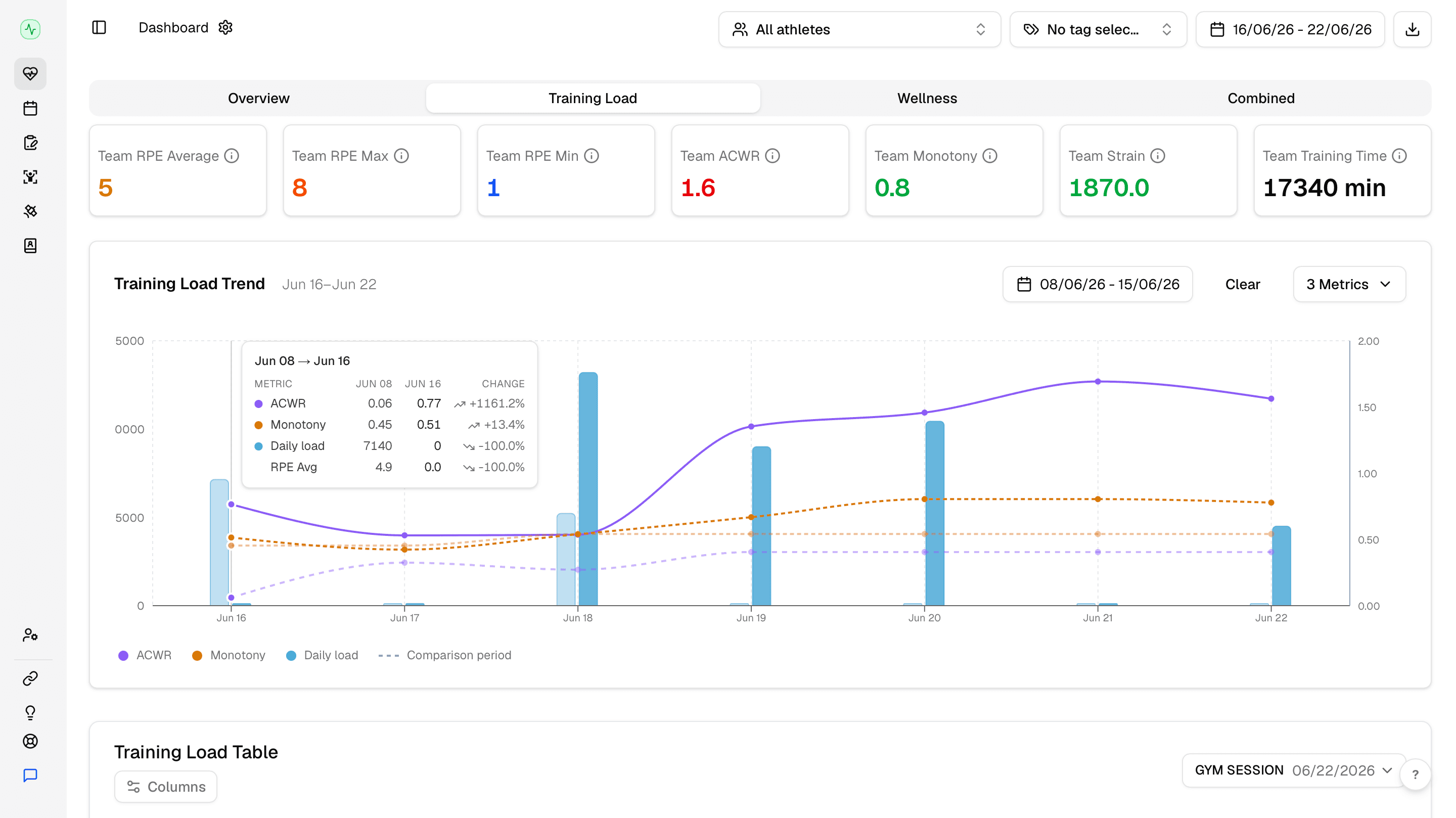
Start with the cards across the top. They summarize team sRPE, maximum and minimum effort, ACWR, monotony, strain, and training minutes for the selected range.
Then read the Training Load Trend. Toggle the metrics you need before a staff meeting: load shows volume, ACWR shows acute versus chronic balance, and monotony helps you spot repeated similar loads without enough variation.
Compare athletes in the table
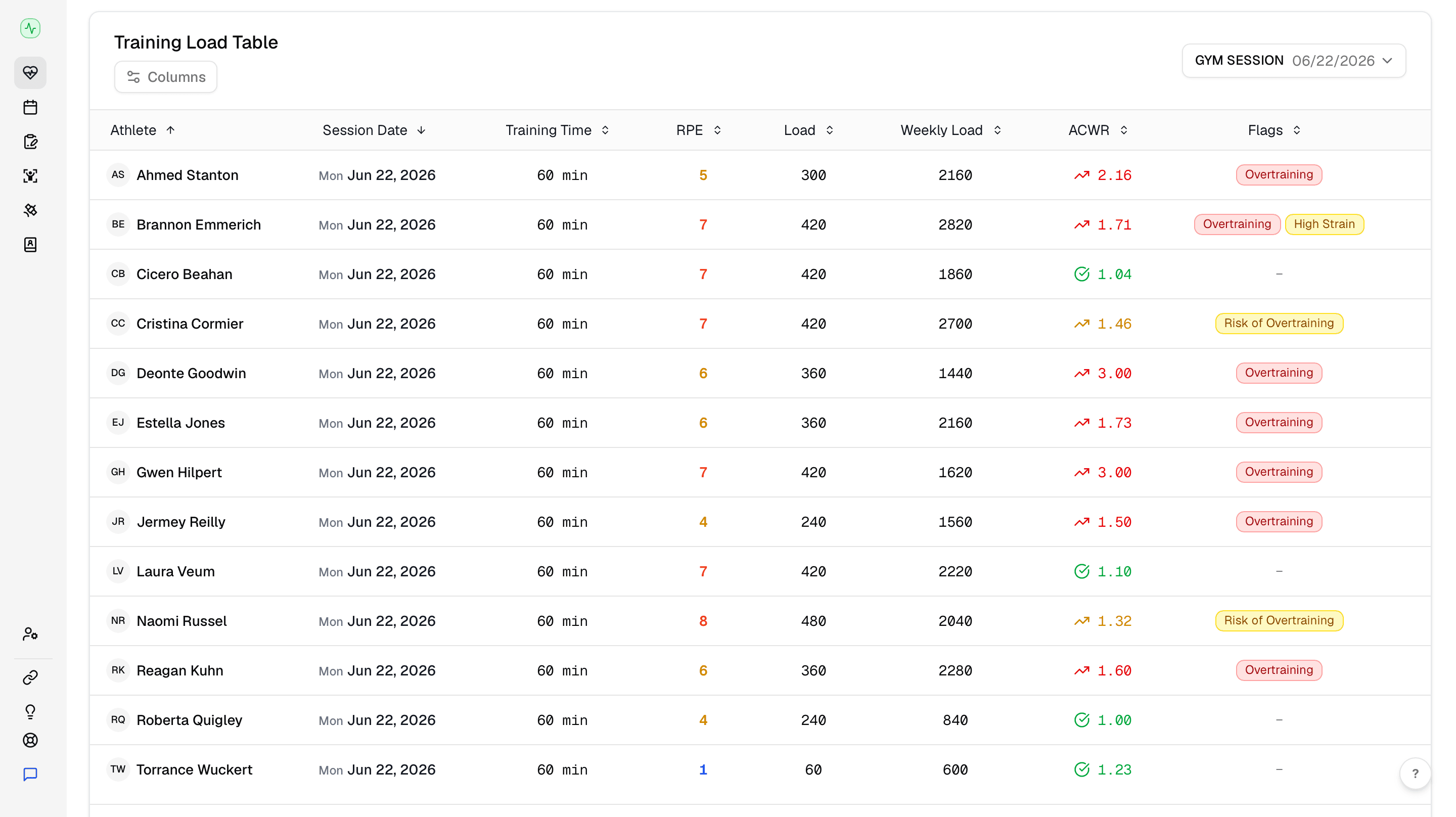
The athlete table is where you find out who is driving the team trend. Sort or scan for high weekly load, ACWR changes, and flags. Use Columns when you need to add and remove columns to the table.
You can also use the session date selector to filter the table by session date.
What to do next
When load looks wrong, check the input first. Athletes submit sRPE from the mobile app after sessions; see sRPE for that workflow. If entries are missing or incorrect, manage them from response monitoring.
When load is accurate but the zones do not match your ACWR model, see ACWR and load metrics and dashboard preferences.