

Response monitoring and compliance
See who submitted wellness and sRPE, manage missing entries, and configure reminder settings.
Response Monitoring
Response Monitoring is where you can see who submitted today, review response history and, manage missing or incorrect wellness and sRPE submissions.
- Open Response MonitoringUnder Wellness & Load in the sidebar.
- Read the summary cardsToday’s sRPE and wellness response rates.
- Scan the athlete tableColor-coded fractions per athlete.
- Open a response dialogSingle-day view, day/session picker, manage button.
- Log or edit a submissionOpen a response card and switch to single-day view.
- Adjust notificationsReminders for missing submissions.
Open Response Monitoring
Expand Wellness & Load in the sidebar and open Response Monitoring.
Summary cards
Two cards sit at the top:
sRPE Responses— today’s submission count vs roster size, a 7-day average, and a mini trend chart. If no session is scheduled, the card tells you sRPE is not required.Wellness Responses— the same for daily wellness check-ins, which can be submitted throughout the day.
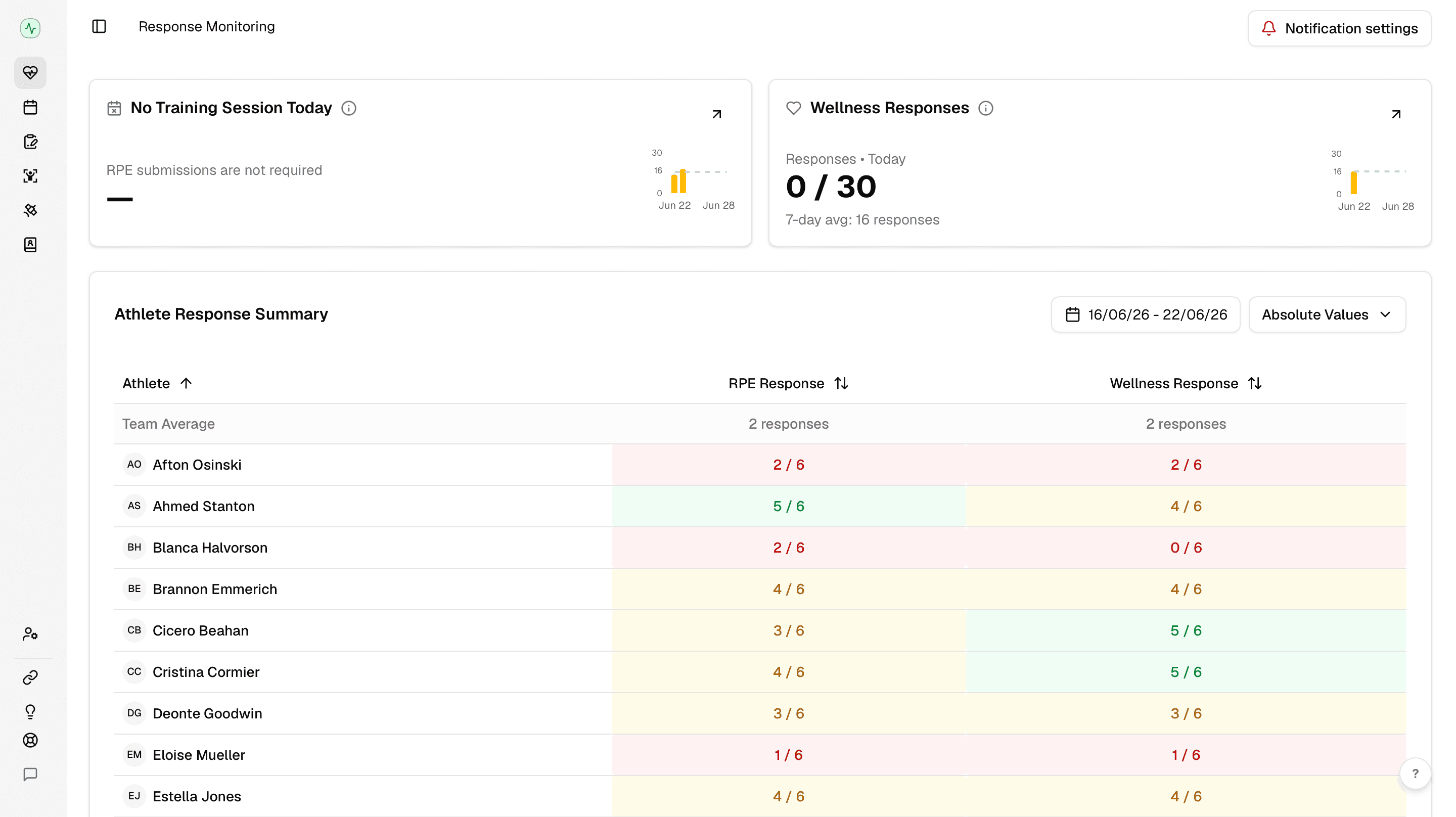
Use the arrow on either card to open its detail dialog. The dialog can show a date range chart or a single-day list of who responded and who did not.
Athlete table
The Athlete Response Summary table lists every athlete with two columns:
sRPE Response— submissions vs expected sessions in the date range (e.g.3 / 8).Wellness Response— wellness check-ins vs expected days (e.g.2 / 2).
Cells are color-coded so gaps stand out: red for missing, yellow for partial, green for complete. A Team Average row at the top helps you compare individuals to the squad.
Toggle Absolute Values when you need raw counts instead of fractions — useful when roster size changes mid-week or you are comparing small groups.
Open a response dialog
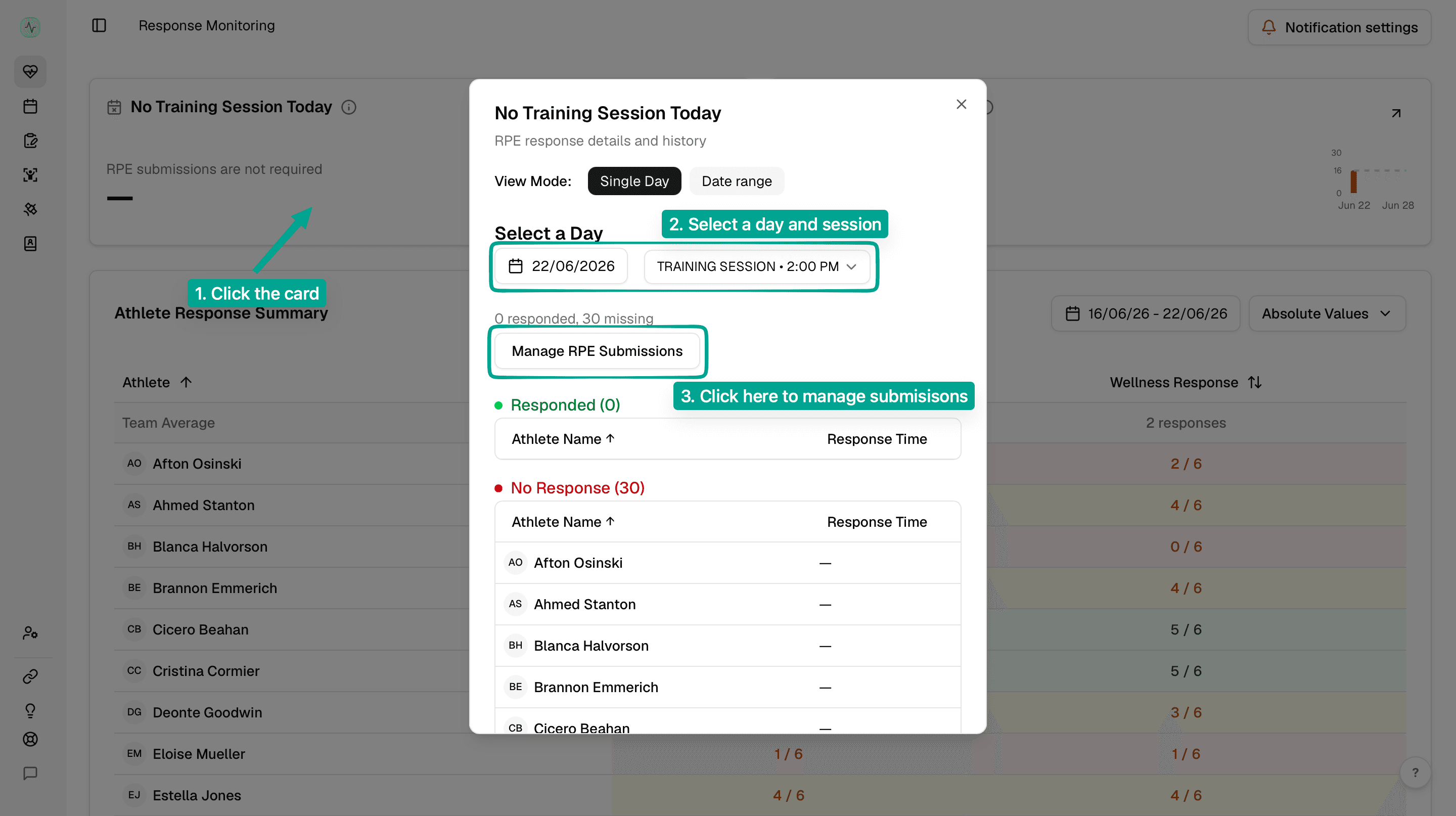
Click the arrow on sRPE Responses or Wellness Responses to open the detail dialog. Use Date range when you want history, and Single Day when you need to manage submissions for a specific day.
For sRPE, select the day and session before you click Manage sRPE Submissions. For wellness, select the day before you click Manage Wellness Submissions.
Manage missing or wrong submissions
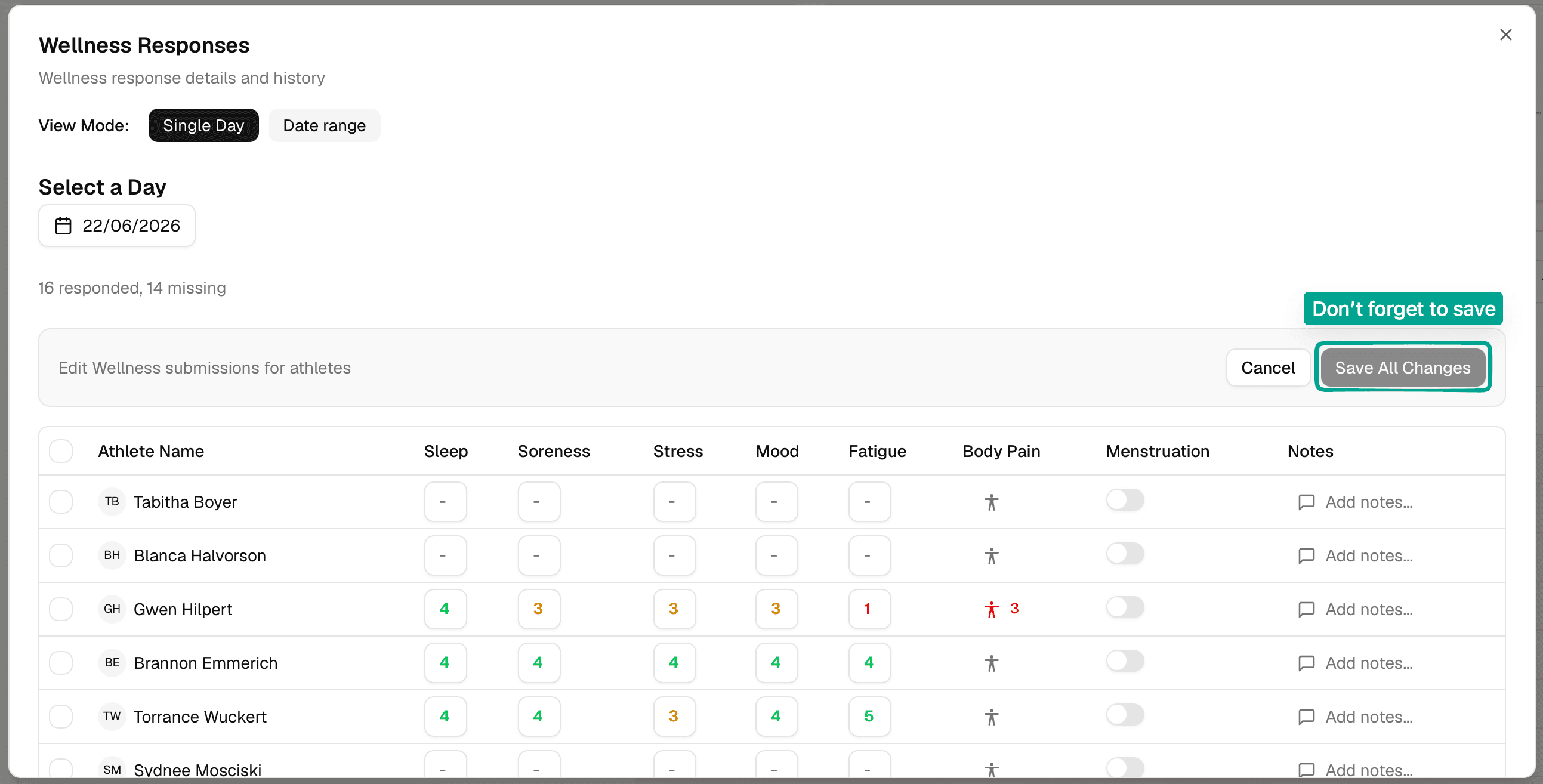
The management table is where you can add missing entries, correct wrong values, add notes, or remove submissions
- sRPE management lets you add or edit athlete sRPE values and notes for the selected training session.
- Wellness management lets you add or edit sleep, soreness, stress, mood, fatigue, body pain, menstruation-cycle status when available, and notes for the selected day.
- Bulk controls let you select rows, delete selected submissions, reset selected rows, cancel, or click
Save All Changes.
Keep the data honest
Every saved submission updates the Wellness & Load data behind Overview, Training Load, Wellness, and ACWR widgets.
Notification settings
Click Notification settings to configure reminders for wellness and sRPE submissions. It only works if athletes have the app installed and are using it.
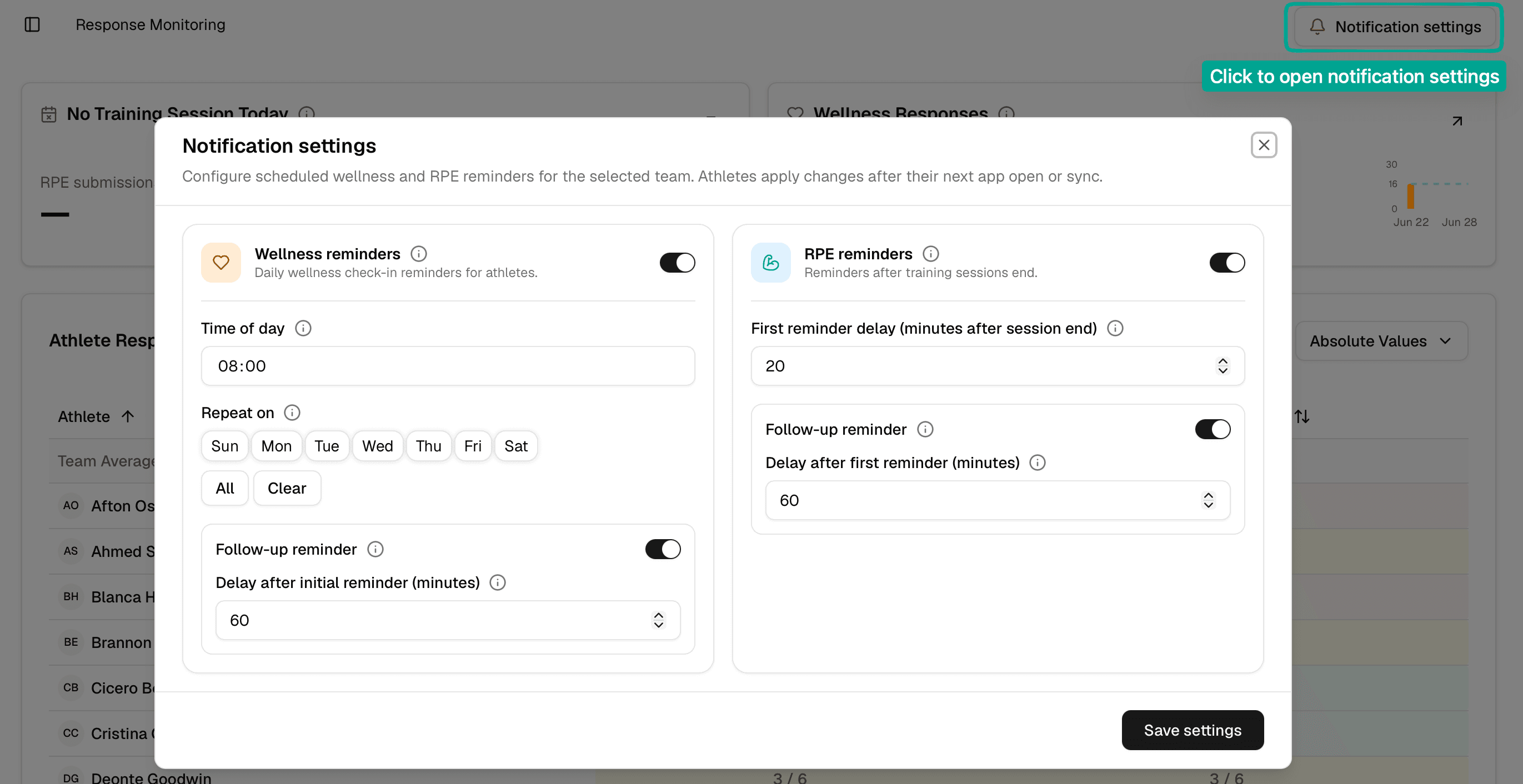
Wellness reminders— enable or disable daily wellness reminders, set the time of day, choose repeat weekdays, and add a follow-up reminder delay. The default wellness reminder is08:00; the default follow-up delay is60 minutes.sRPE reminders— enable or disable post-session reminders, set the first delay after session end, and add a follow-up delay when the athlete still has not submitted. The default first reminder delay is20 minutesafter session end; the default follow-up delay is60 minutes.