

Invite your athletes
Share invite links, get athletes on the Fractall mobile app, and see their first check-ins in Wellness & Load.
What you'll do
After you walk through a check-in yourself, invite your squad so they can submit from the Fractall mobile app. Share one link per athlete, confirm they appear on your roster, then watch their first wellness or sRPE land in the Wellness and Load dashboard.
Send the invite
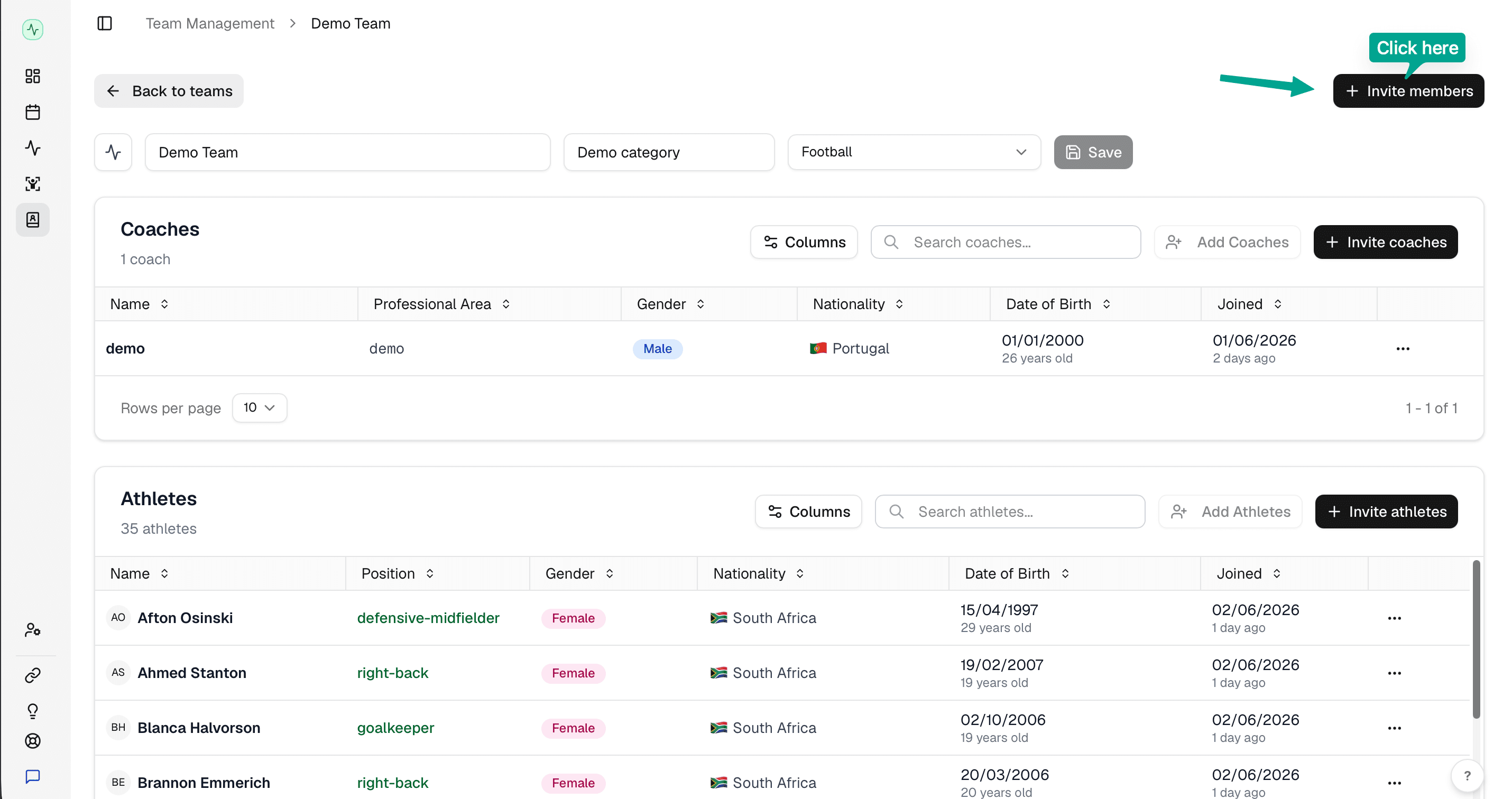
Open Team Management in the sidebar and select your active team. Click Invite members in the top right.
Set Invite role to Athlete, click Copy link, and share it with each athlete — WhatsApp, email, or your team channel all work.
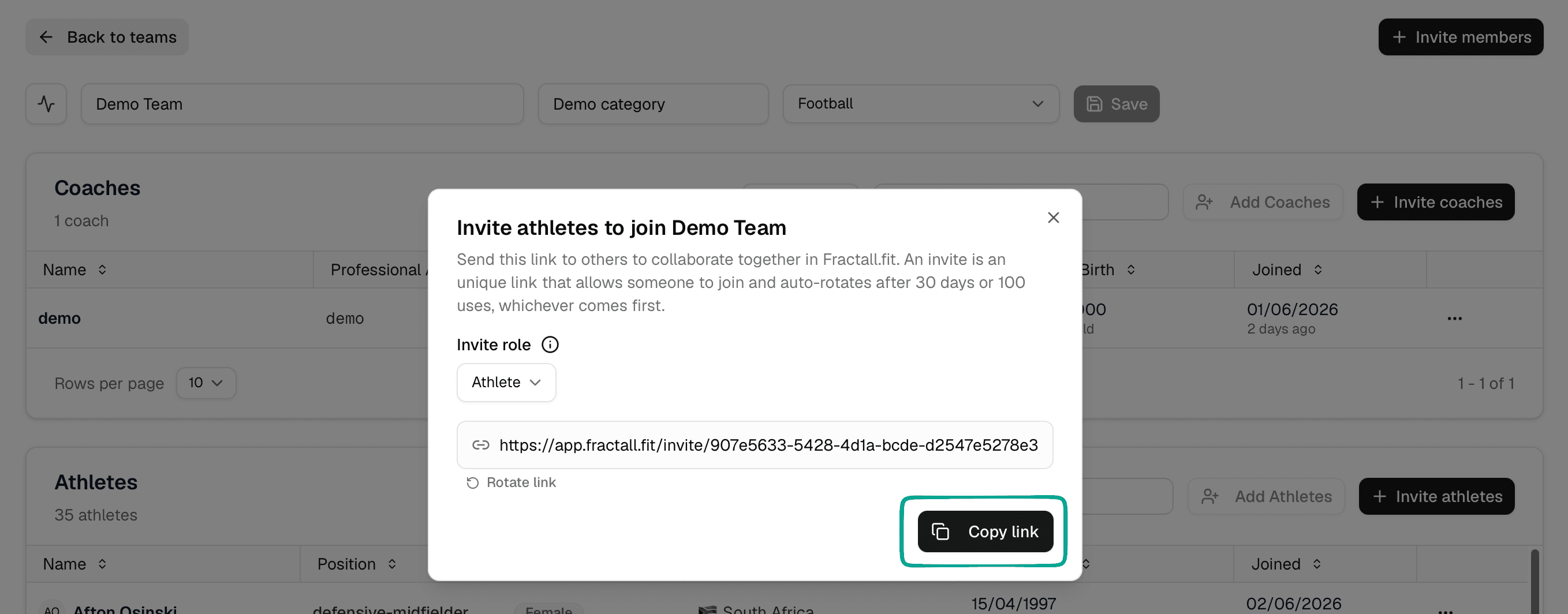
Each link ties the athlete to your team automatically. They do not need to enter a club code or search for your organization.
Get athletes on the app
Ask athletes to open the invite link on their phone. If they land in the web app, Fractall will prompt them to download the native app — that is the experience you want.
You can also share the app directly if an athlete needs it before accepting an invite:
Once installed, athletes sign in through the invite link and complete a short setup. From there they submit Submit Wellness before training and Submit sRPE after sessions — the same flow you previewed in your first check-in.
Desktop works — notifications do not
Athletes can open the invite link on a laptop and use Fractall in the browser. That is fine for occasional check-ins. They will only receive push reminders for wellness and sRPE after they install the app on their phone.
Confirm they joined
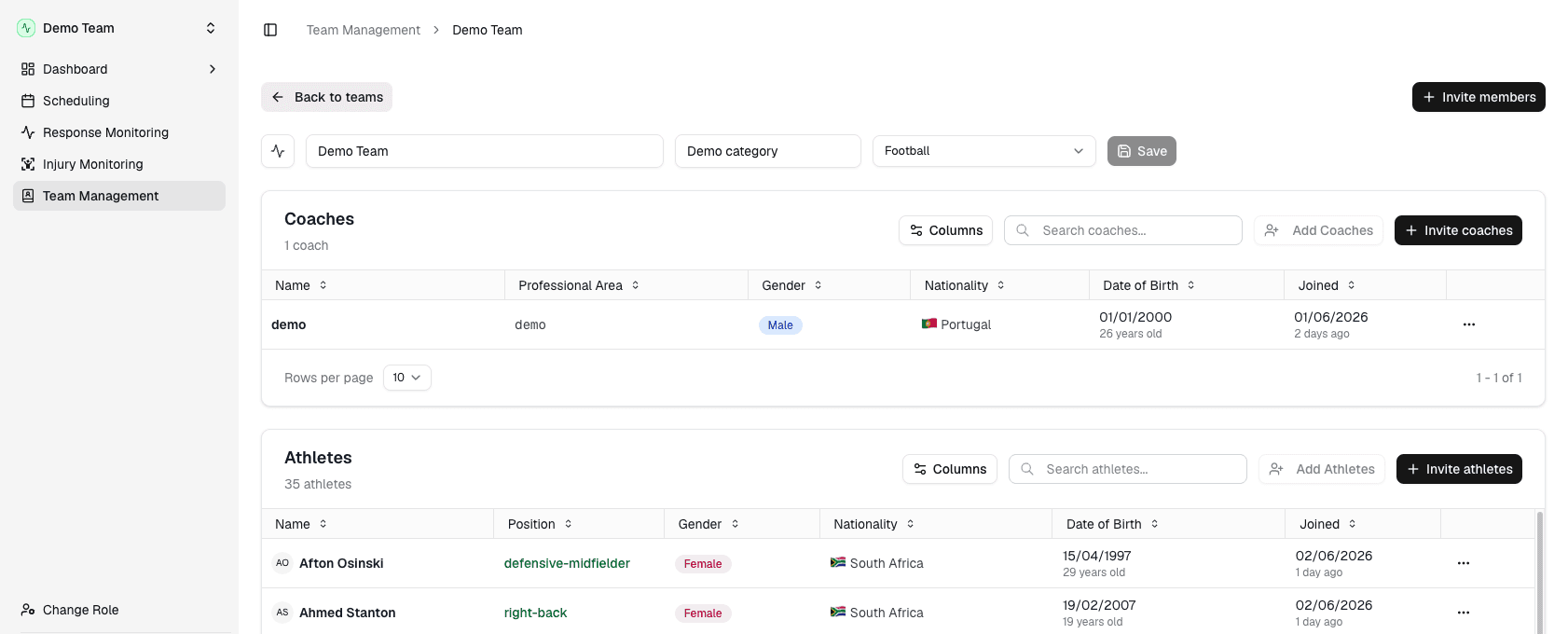
Back in Team Management, scroll to the Athletes section. Each athlete who accepted the invite should appear in the table with their name.
See check-ins in Wellness & Load
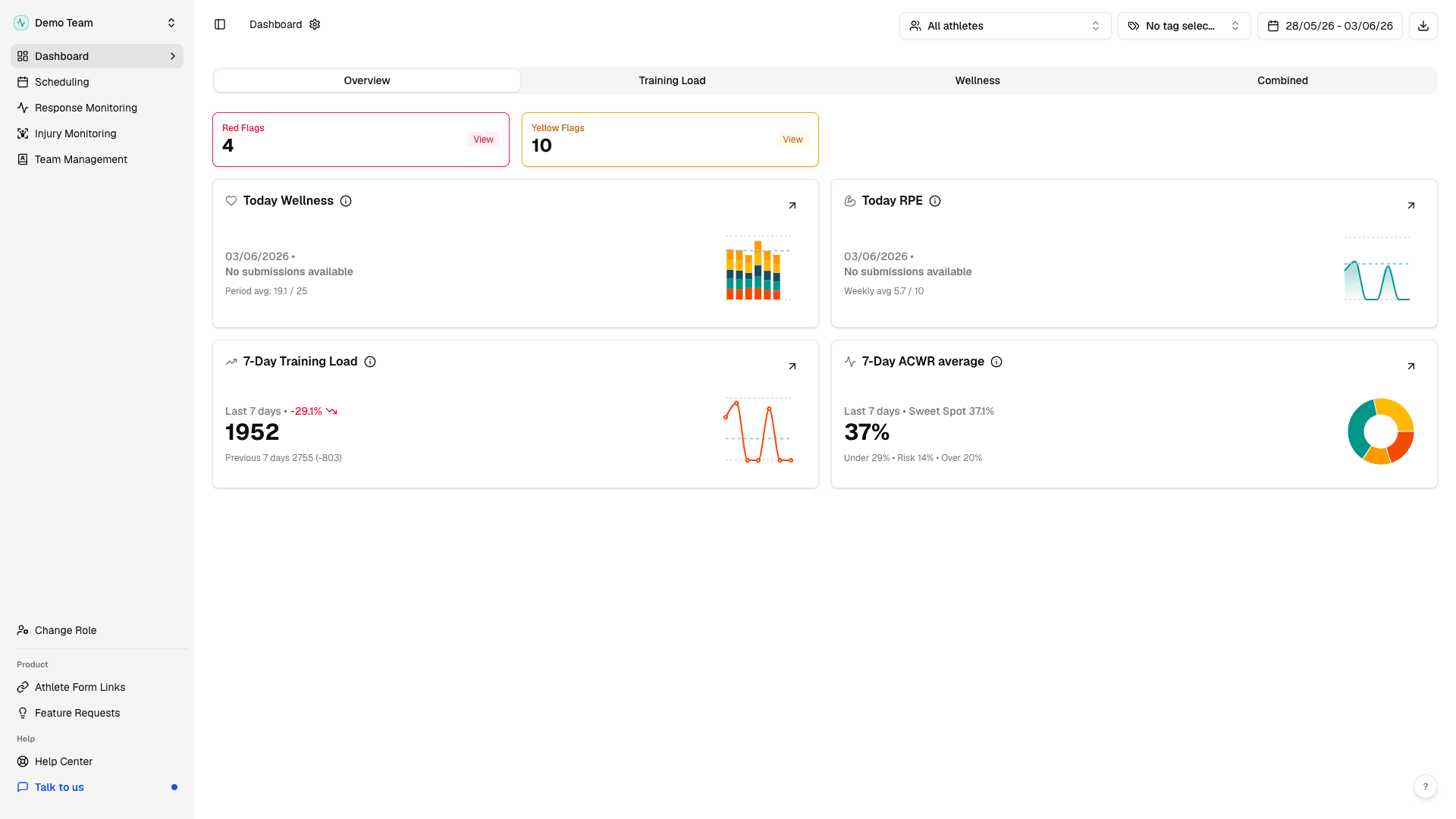
Open Wellness & Load in the sidebar. On the Overview tab, check Today Wellness and Today sRPE — the same cards from your solo walkthrough, now showing real athlete names.
Once submissions are coming in, set your daily review rhythm with your first monitoring week.