



Claude & Fractall.fit
Add Fractall.fit as a custom connector in Claude Desktop, allow access in the browser, and confirm with a simple teams question.
What you'll do
This guide uses Claude Desktop on your computer. You turn off model training, add Fractall.fit once, click Allow in the browser, set tool permissions, then ask a simple question to confirm it worked.
- Turn off model trainingIn Claude Settings, Privacy, switch off Help improve our AI models.
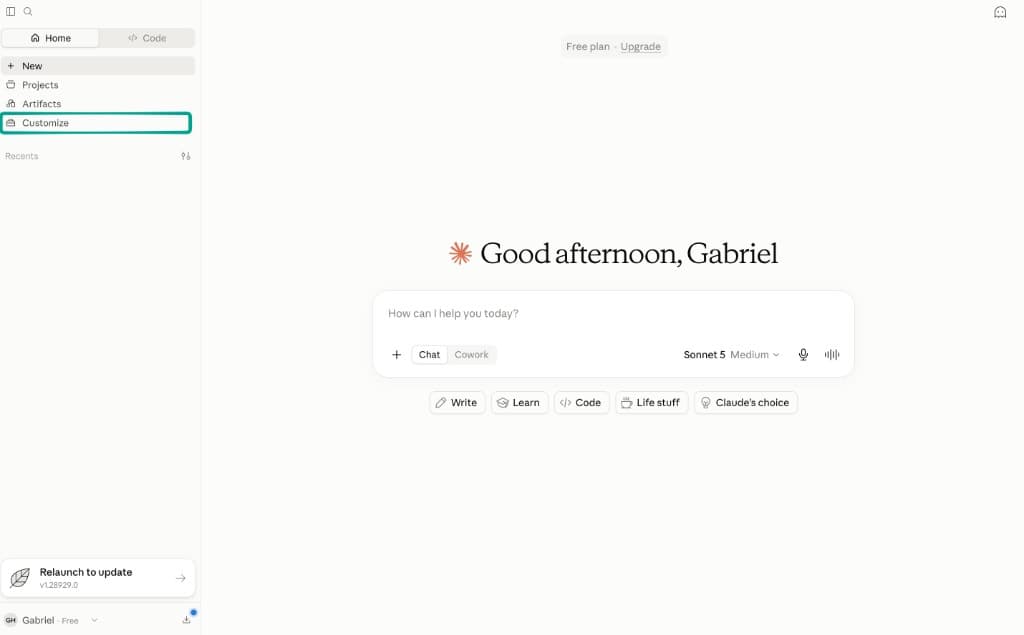
- Open CustomizeClick Customize in the Claude Desktop sidebar.
- Add Fractall.fitAdd a custom connector with the Fractall URL.
- Connect and AllowClick Connect, then Allow on the Fractall screen.
- Allow toolsSet Other tools to Always allow.
- Check it worksAsk Claude to list your Fractall teams.
Before you start
Have your Fractall email and password ready in case Claude asks you to sign in. New to Connect to AI? Read What is Connect to AI? first.
Turn off model training
Before you connect, open Claude Settings, then Privacy, and switch off Help improve our AI models.
On Claude's Free, Pro and Max plans, this setting decides whether Anthropic can use your chats to train its models. Anthropic says raw content Claude reads through connectors isn't included in training data, but your conversations, including Claude's answers about your squad, follow this setting. On Team and Enterprise plans, Anthropic doesn't train on your chats by default.
The setting applies to new chats. Chats already used in training stay in it.
Open Connectors
Open Claude Desktop. In the left sidebar, click Customize.
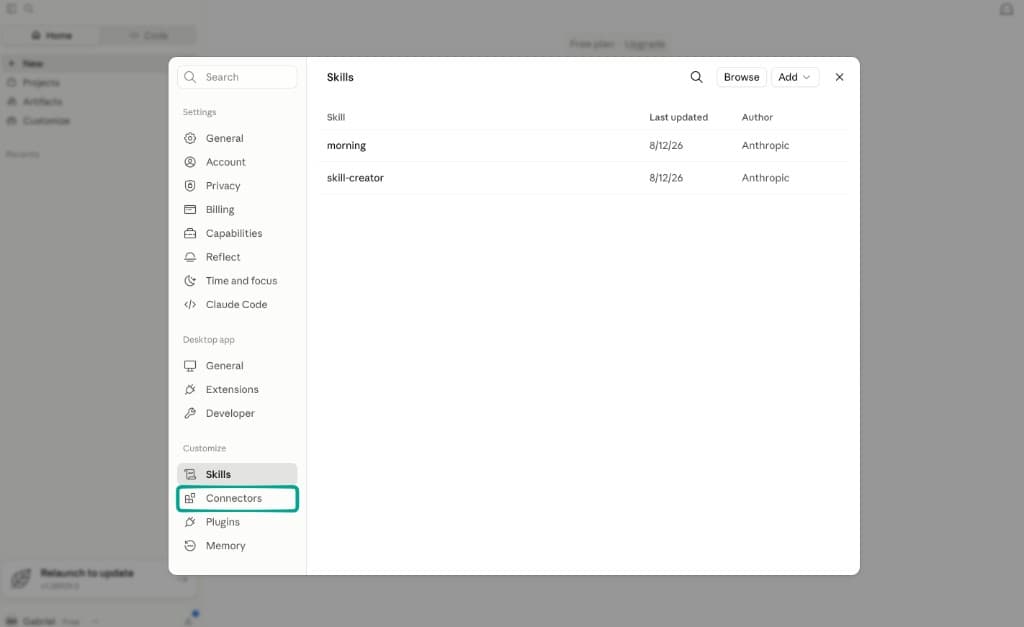
In the settings sidebar under Customize, click Connectors.
Team or Enterprise Claude plans
An Owner may need to add Fractall first under organization connector settings. After that, each person opens Customize → Connectors, finds Fractall.fit, and clicks Connect.
Add Fractall.fit
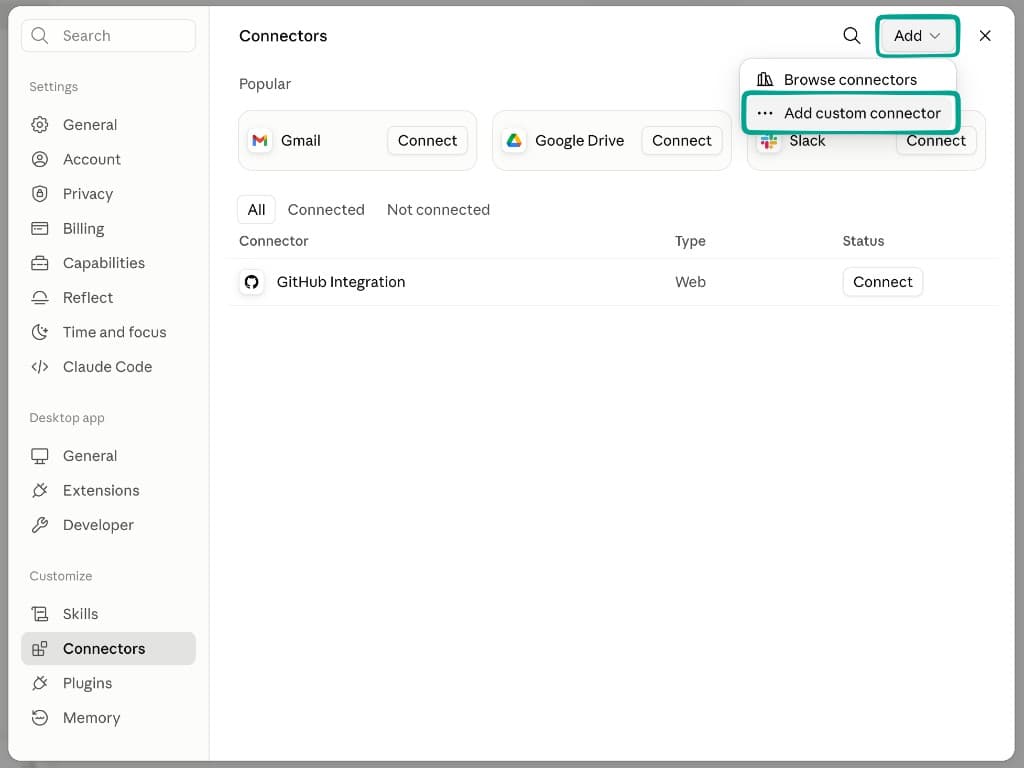
At the top right of Connectors, click Add, then Add custom connector.
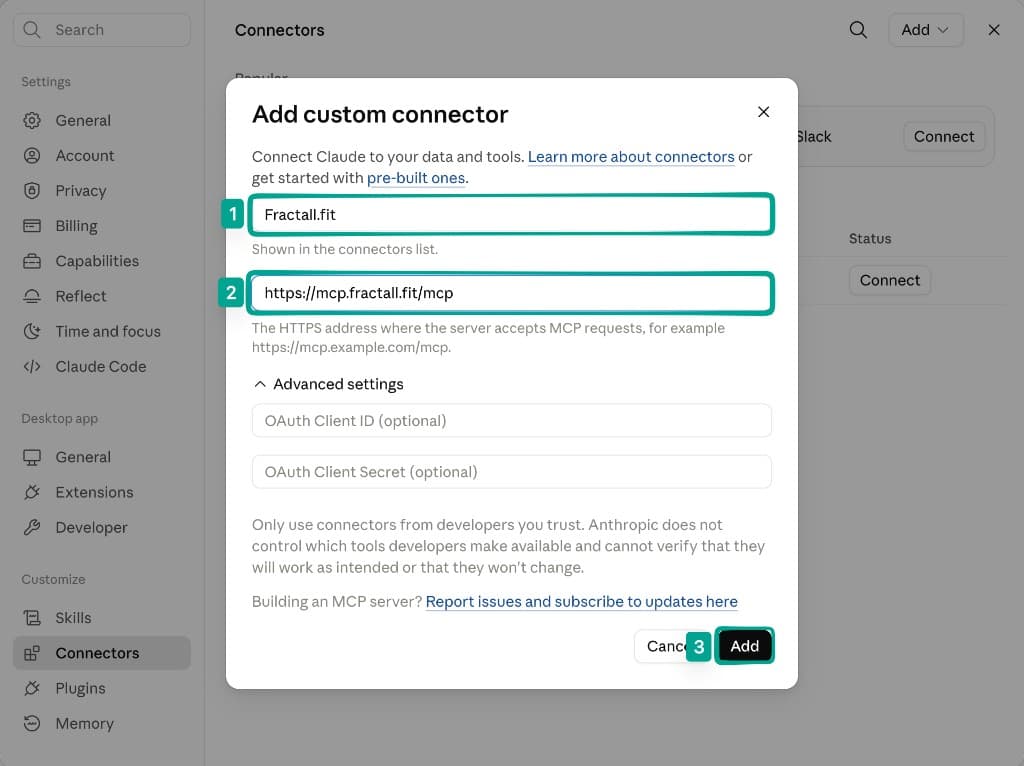
In the dialog, enter:
- Name:
Fractall.fit - URL:
https://mcp.fractall.fit/mcp
Leave Advanced settings empty. Click Add.
Connect and Allow
Claude opens Fractall.fit. If you see You are not connected to Fractall.fit yet, click Connect.
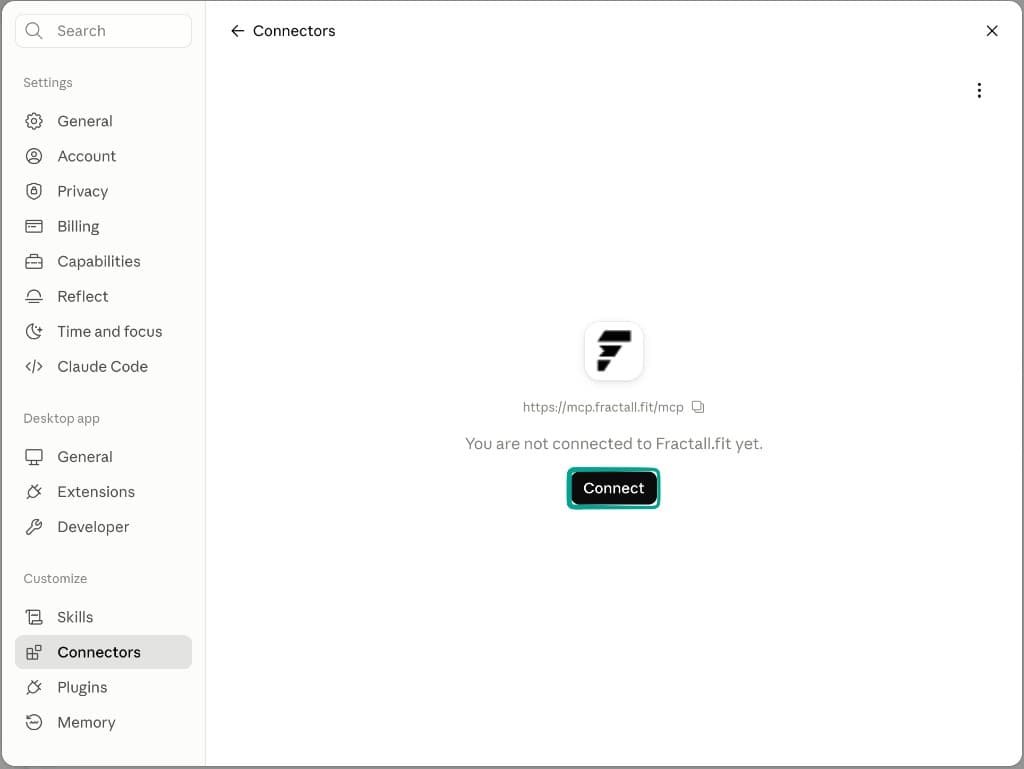
A browser window opens. If you are not already signed in to Claude in that browser, Claude asks you to log in first. Sign in with your Claude account, then continue.
Next you should see Connect to Fractall. Check that the account email is yours, then click Allow.
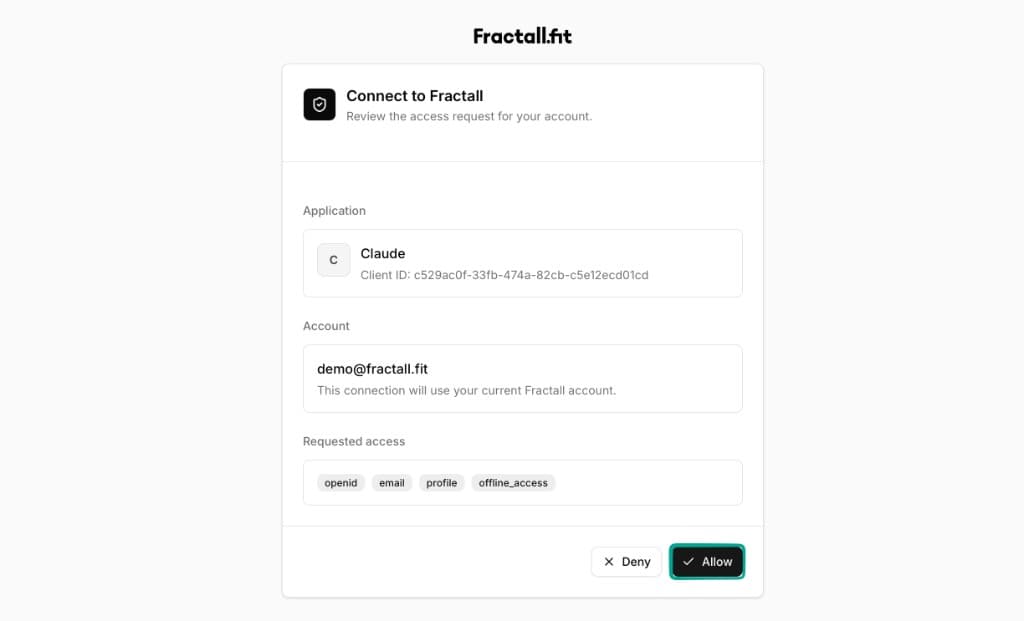
If you see a Fractall sign-in form
Sign in with your Fractall email and password, then click Allow on the Connect to Fractall screen.
Allow Fractall tools
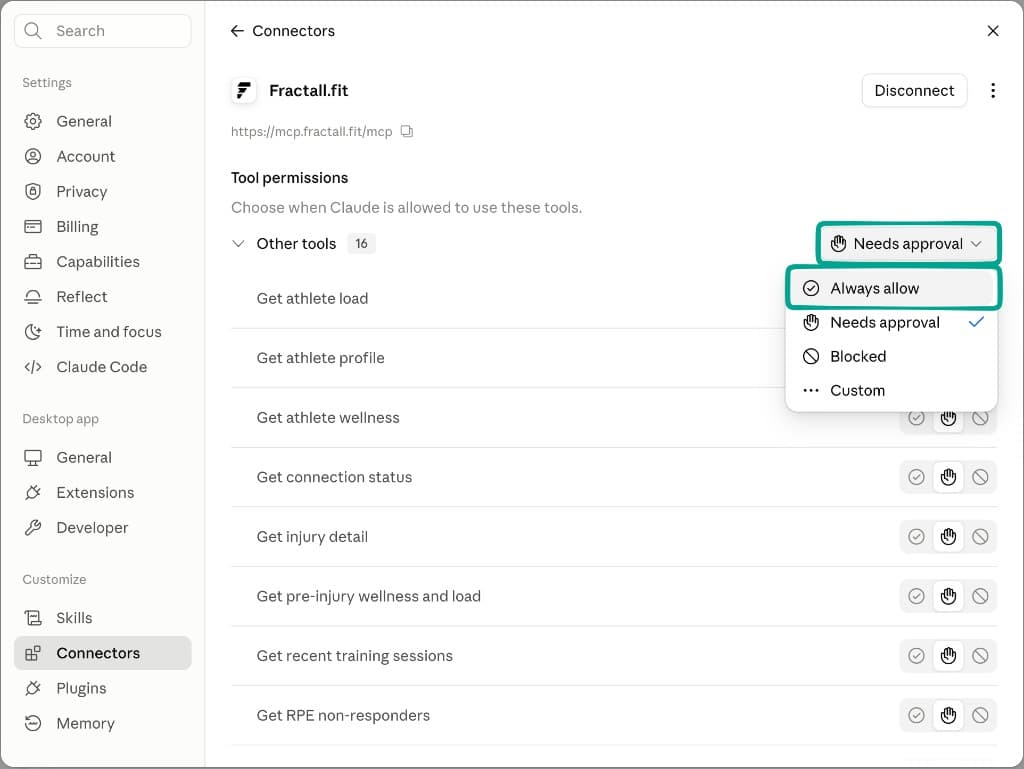
Back on the Fractall.fit connector page, open Tool permissions. For Other tools, change the setting from Needs approval to Always allow.
Success check
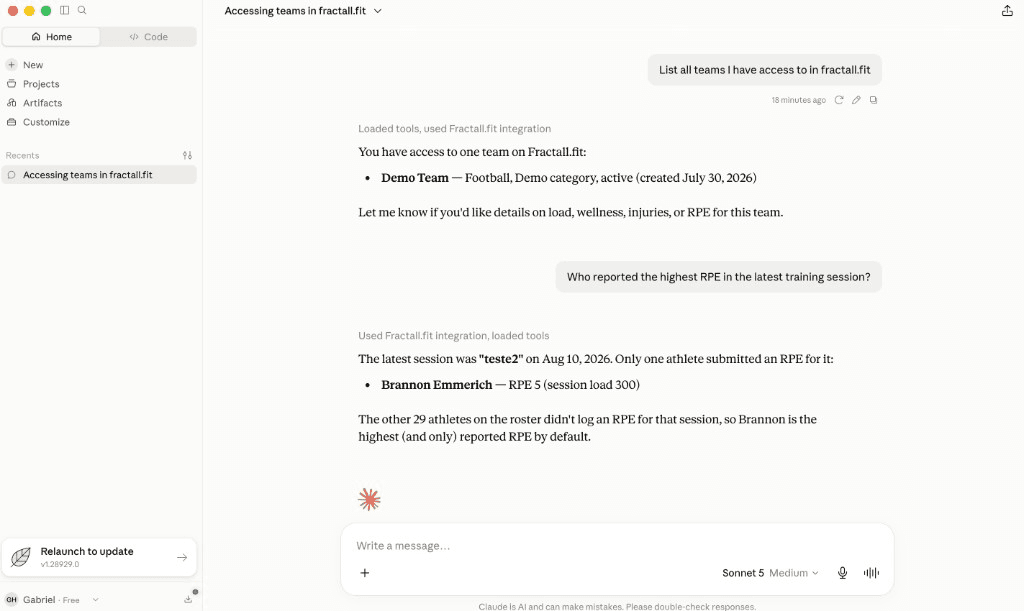
Close settings and open a new chat. Send this message:
List all teams I have access to in fractall.fit
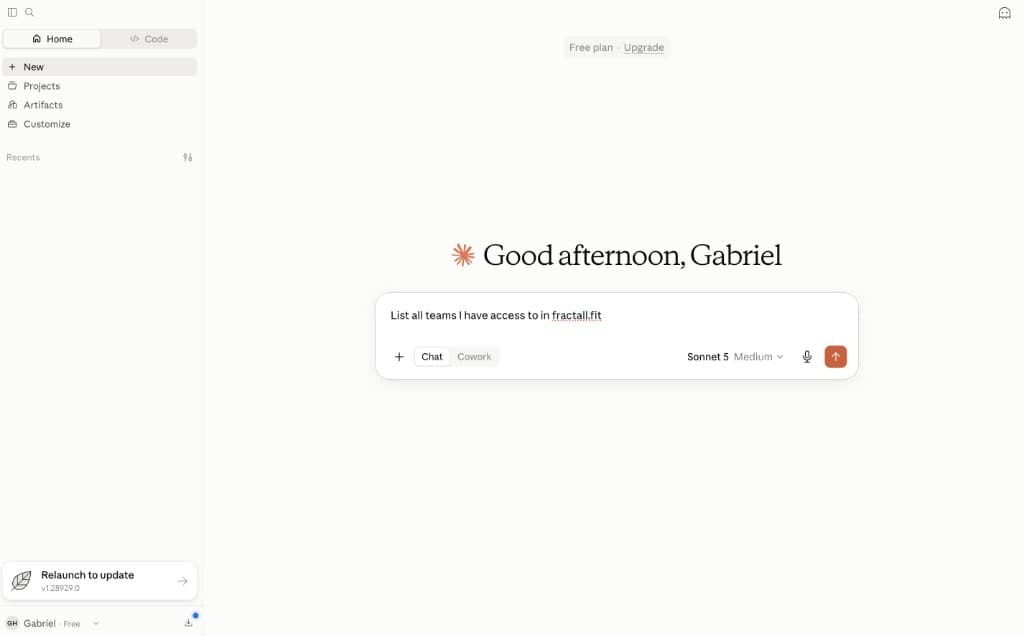
You should see something like Loaded tools, used Fractall.fit integration, then your team names.
Sign in again
If answers stop working or Claude asks you to reconnect:
- Open
Customize→Connectors - Open
Fractall.fitand clickDisconnect - Click
Connectagain, thenAllowin the browser - Confirm
Other toolsis stillAlways allow - Ask
List all teams I have access to in fractall.fitagain
Still failing? Remove the custom connector, add it again with the same URL, then connect. If that does not fix it, contact support and mention Connect to AI / Claude Desktop.
Quick tips
- Free Claude plans allow one custom connector. Remove an unused one if you hit the limit.
- You only see Fractall data your account can already access in the app.
- Not sure what to ask? See the questions S&C coaches ask about their squad.
- Prefer ChatGPT instead? See ChatGPT & Fractall.fit.